
Let's be honest, I have a weird way of restarting projects and redesigning my apps far too often. Abandoning my users that can't upgrade to the very last iOS version for some shiny new APIs or design choices... I feel like my work can always be better and it's always worth the time to risk it all and rethink everything with my new learnings. Good thing is - it's often for the best! Let it be technically or graphically, starting things from scratch to rethink them is a thought process I find quite fun and beneficial, despite the struggles and the time required.
Since I recently went through that process with Egretta, my award-winning Dream Journal app, I thought I'd share the story on here, outlining every step of the journey, the challenges and the choices made along the way.
Note
This is a design-focused breakdown, but let me know if you'd ever like a technical breakdown as well :)
How it started
It became clear, back in May of 2025, that Egretta needed a technical rewrite. At that time, I started an internship at @Luni, and having a blast discovering more clean technical practices, both for optimization and organization.
For instance, one of Egretta's main issue was its monolithic architecture. While it went fine for the most part, the absence of modularity made iterating more troublesome and annoying, and way, way more buggy, with all of the technical debt accumulated (remember that it was my first full fledged iOS app...). I already managed to split that up a bit in the past few months, separating the SwiftData models logic in a different package, as well as the shared UI elements, but it wasn't enough.
The other main issue we're most interested with here is its aging UI. While it looked great and I was still proud of it, it started to feel like a few iOS versions old.
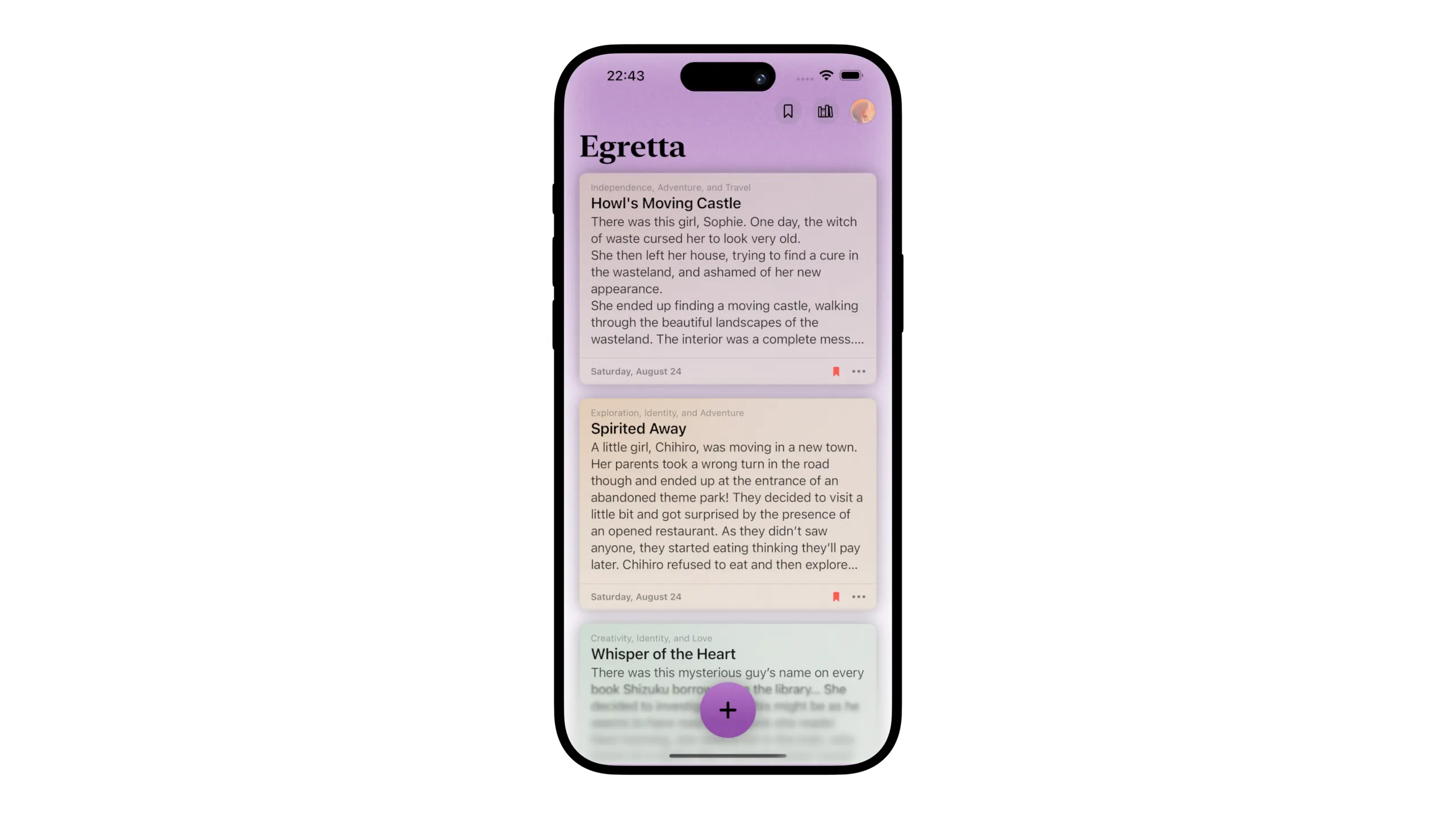
The last thing that definitively made me create a brand new Xcode project for Egretta was of course WWDC25, and the announcement of Liquid Glass. I spent the whole day and night exploring things - even part of the day after honestly (don't tell the manager that both developers on the team were playing with glass instead of implementing analytics...) - and had such a blast trying stuff out with the latest APIs and getting to understand how everything worked under the surface (2 days after I already completely took apart and looked at the guts of liquid glass, leading to fun explorations, like WindowSill)
Liquid Glass was a brand new approach to iOS apps, one that felt more modern and natural for me and my friends who were already naturally going for more rounded, transparent and concentric designs before dubdub. I immediately thought about all the possibilities for Egretta, and got to work on my first explorations in the same week.
Laying the foundations
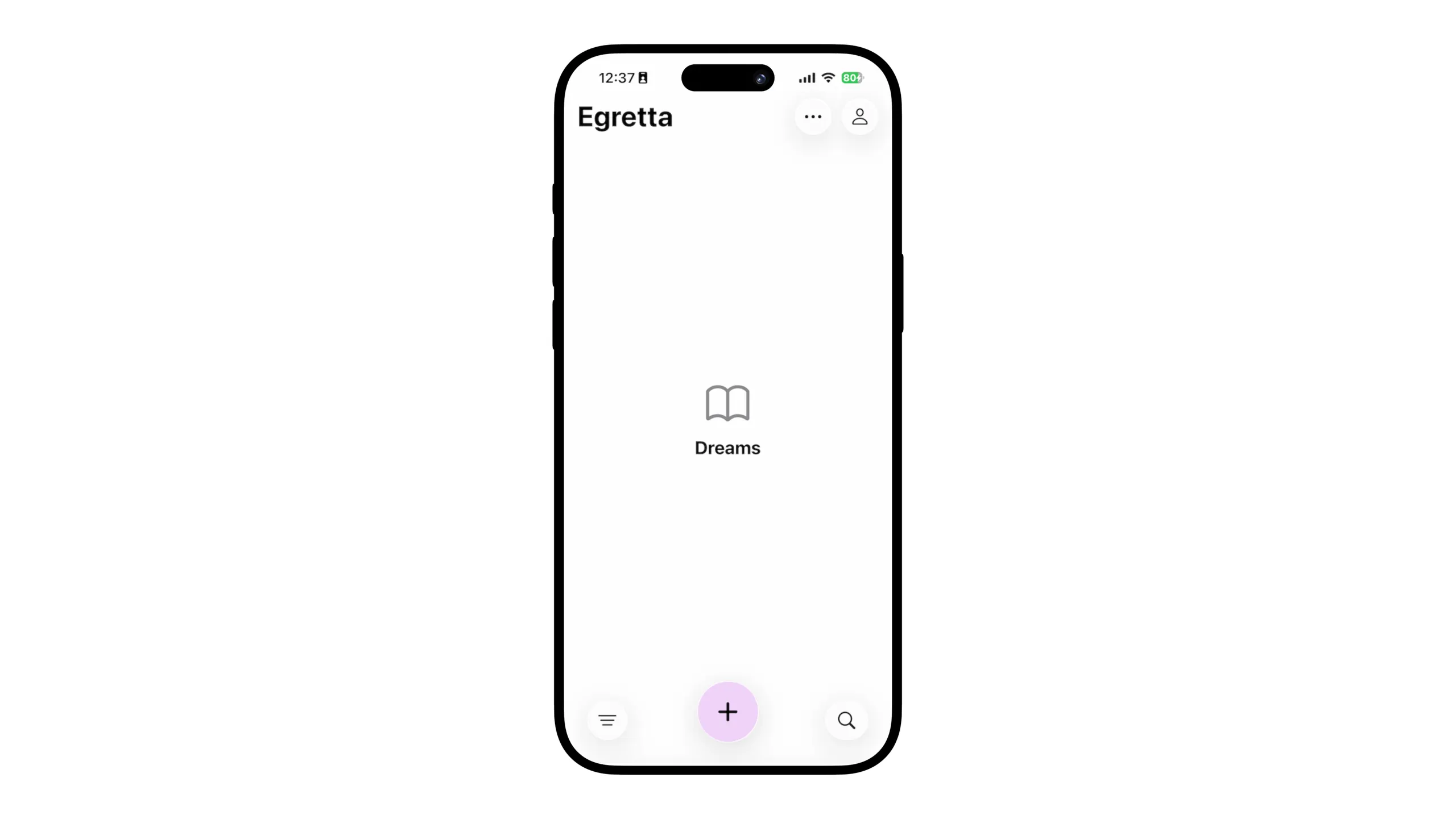
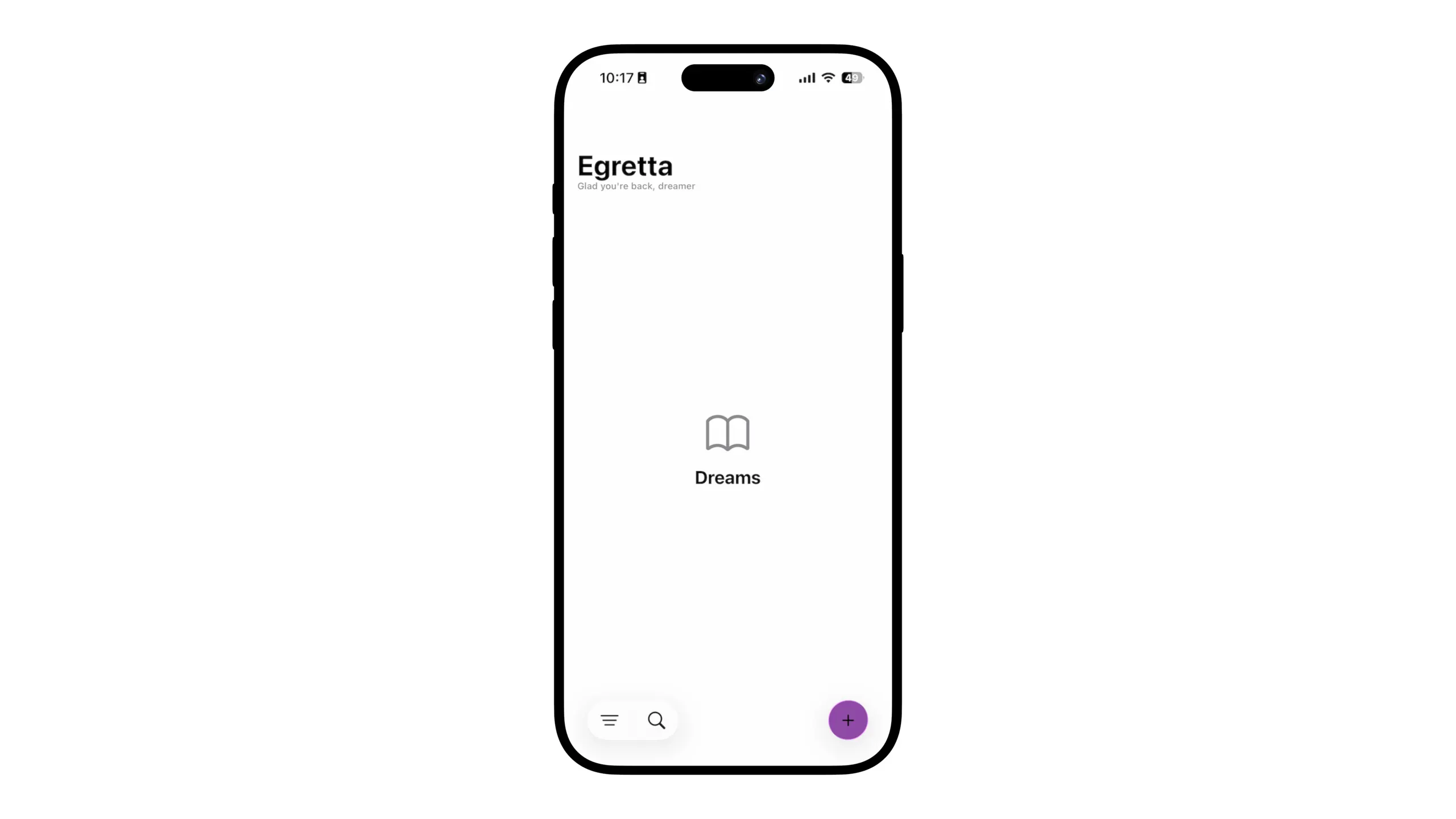
The first thing I did after creating a new Xcode project is to figure out Navigation. It's a very important piece of any app and everything revolves around it. I talked with some friends (hi Aether) about this and it's often source of great headaches... Too much to fit on a single screen? Use tabs! Not enough to fill in all the tabs? Uhhhhhhh good luck!
Fortunately, Egretta's a no brainer. A simple dreams list, a dream editor (either new dream or editing one), and a few other screens like Settings, Profile and Library (with all your people places and items - by far the most basic UI in the app). This can fit in a single screen, or hidden in a menu (the magical "more" menu we all know and love).
My issues were more about the toolbar buttons, and their functions. Where do I put the + button? In the center like previously? On the trailing edge like Apple's Journal (as you may guess a good source of inspiration for my app)? On the leading edge just to make everyone's life more painful trying to reach it?? (okay maybe not that one...)
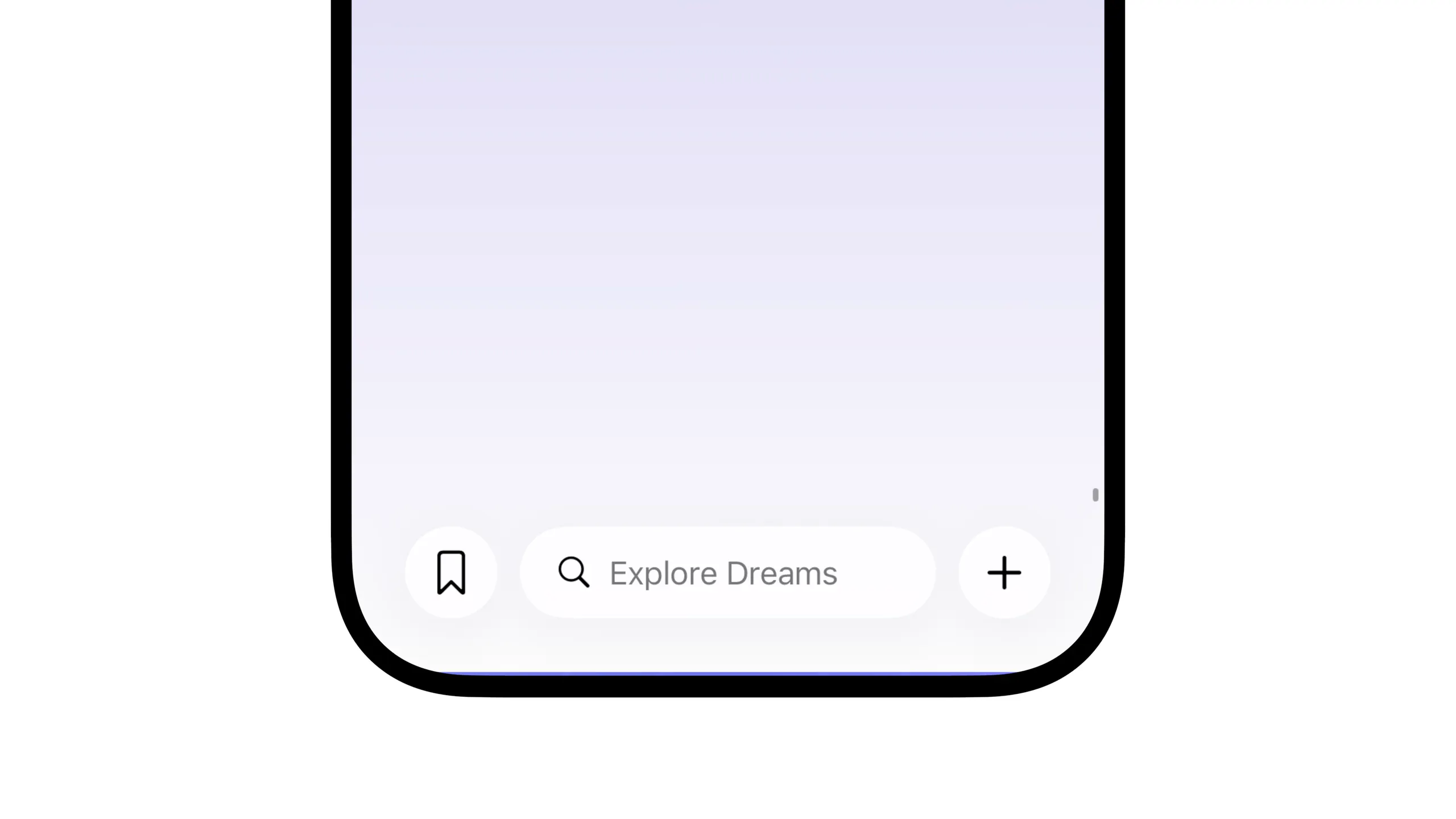
Once that was taken care of, it was time for one of the most important pieces of reusable design: the dream cards.
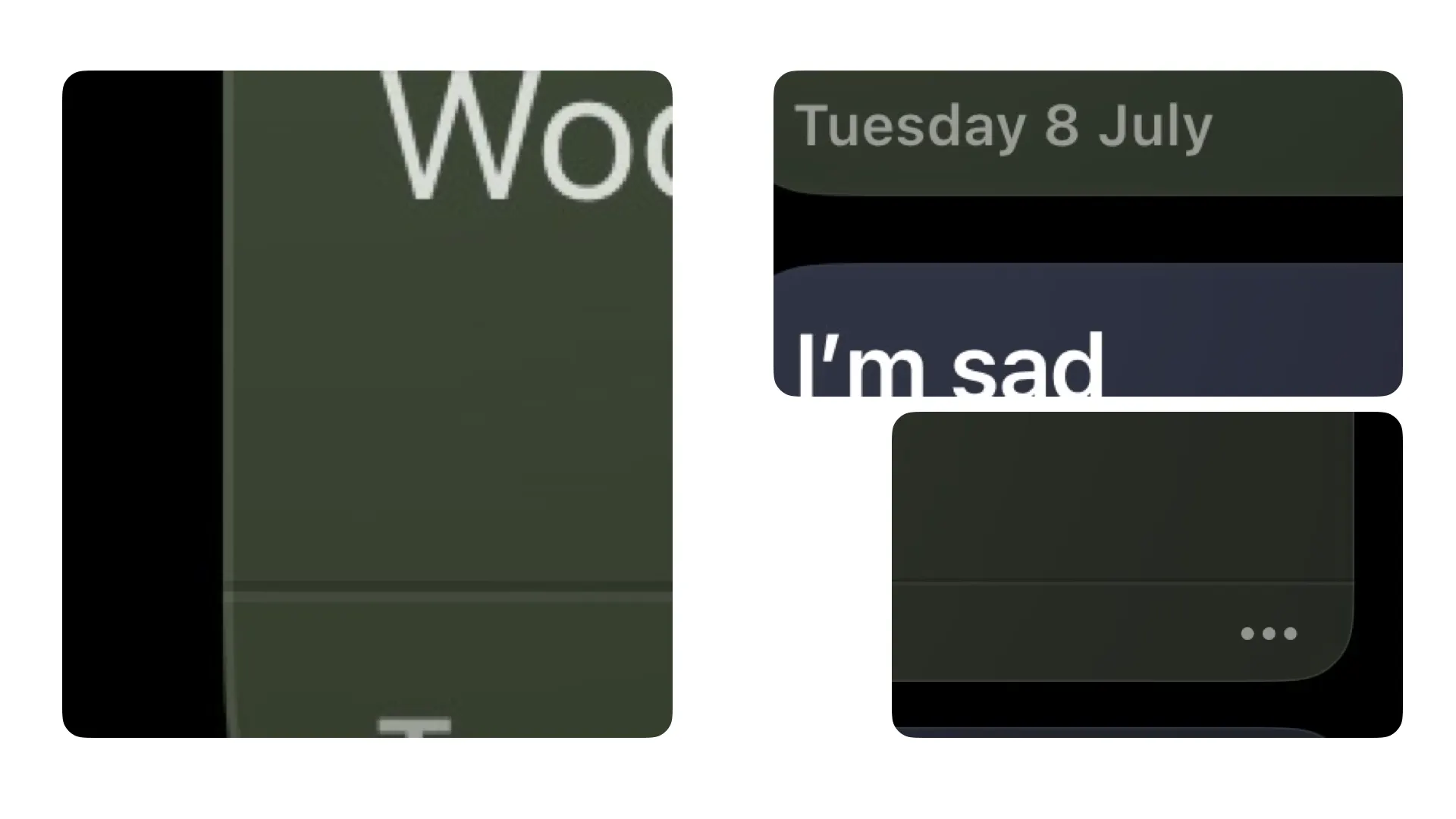
The first thing I knew I wanted is a rounder design. Another intention I had was the use of a better separator, so it looked carved in the card, not a simple line. This separator was already created a few months back when I was playing with macOS design with jacethings & friends - glad it felt right at home on iOS as it did on Mac ! (Now that I think about it I should try making those more detailed.. The illusion only works when zoomed out)
Of course, making the cards more rounded meant adjusting inner paddings so the text didn't feel weird. I'm still not 100% happy with the result but honestly I've seen nobody pull off a perfect rounded card with text inside sooo, I'm still happy with the tradeoffs!
Small note while I'm at it, see the ellipsis menu? It's a tricky one because you can't just make it tappable like this - nobody will be able to reach it, it's way too small. I therefore had to trick the system quite a lot to make it work (the liquid glass popping out animations made it more tricky than in previous versions, but I got there). Now you can actually tap it without missing it 9/10 of the time! Yay!
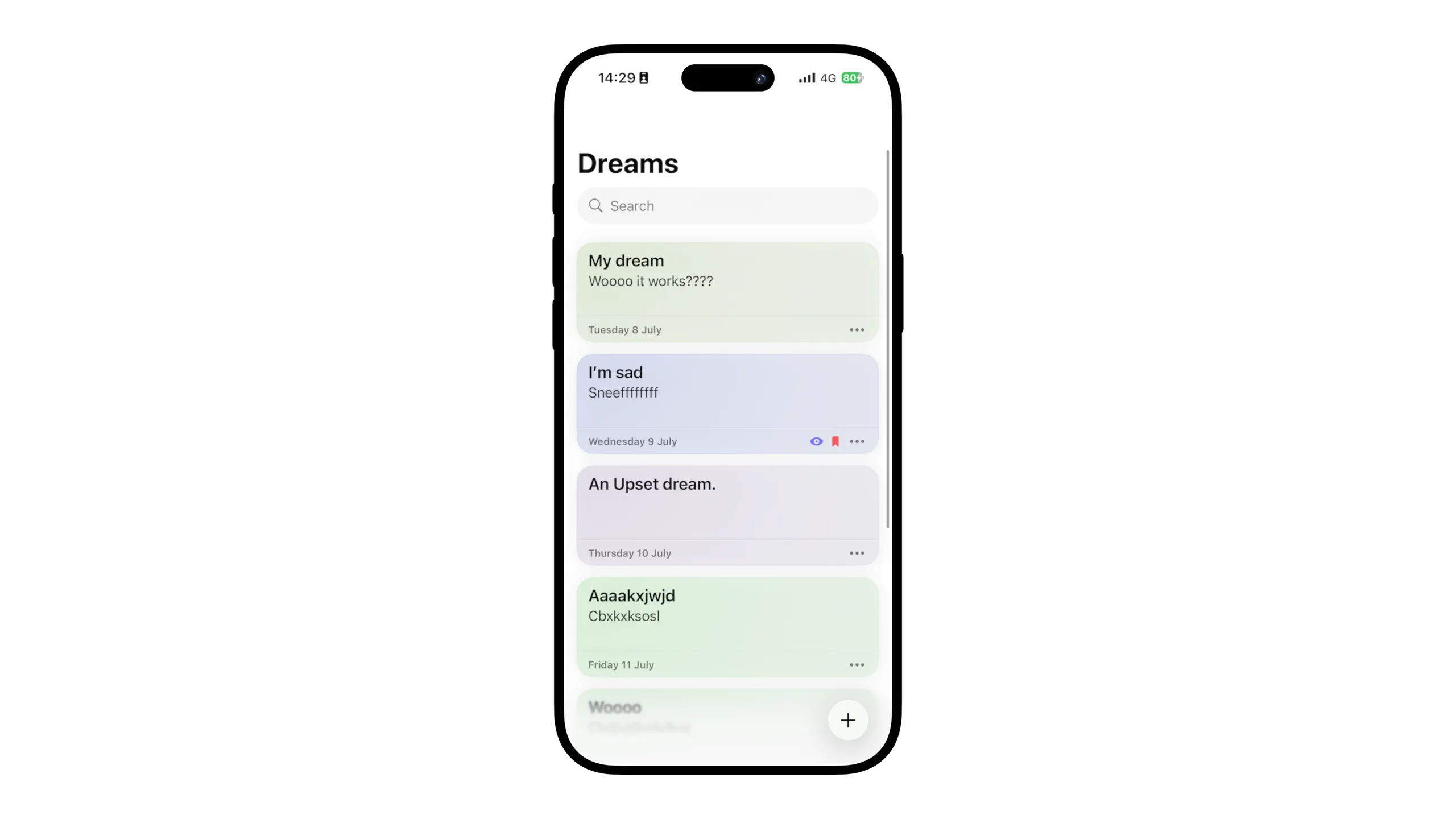
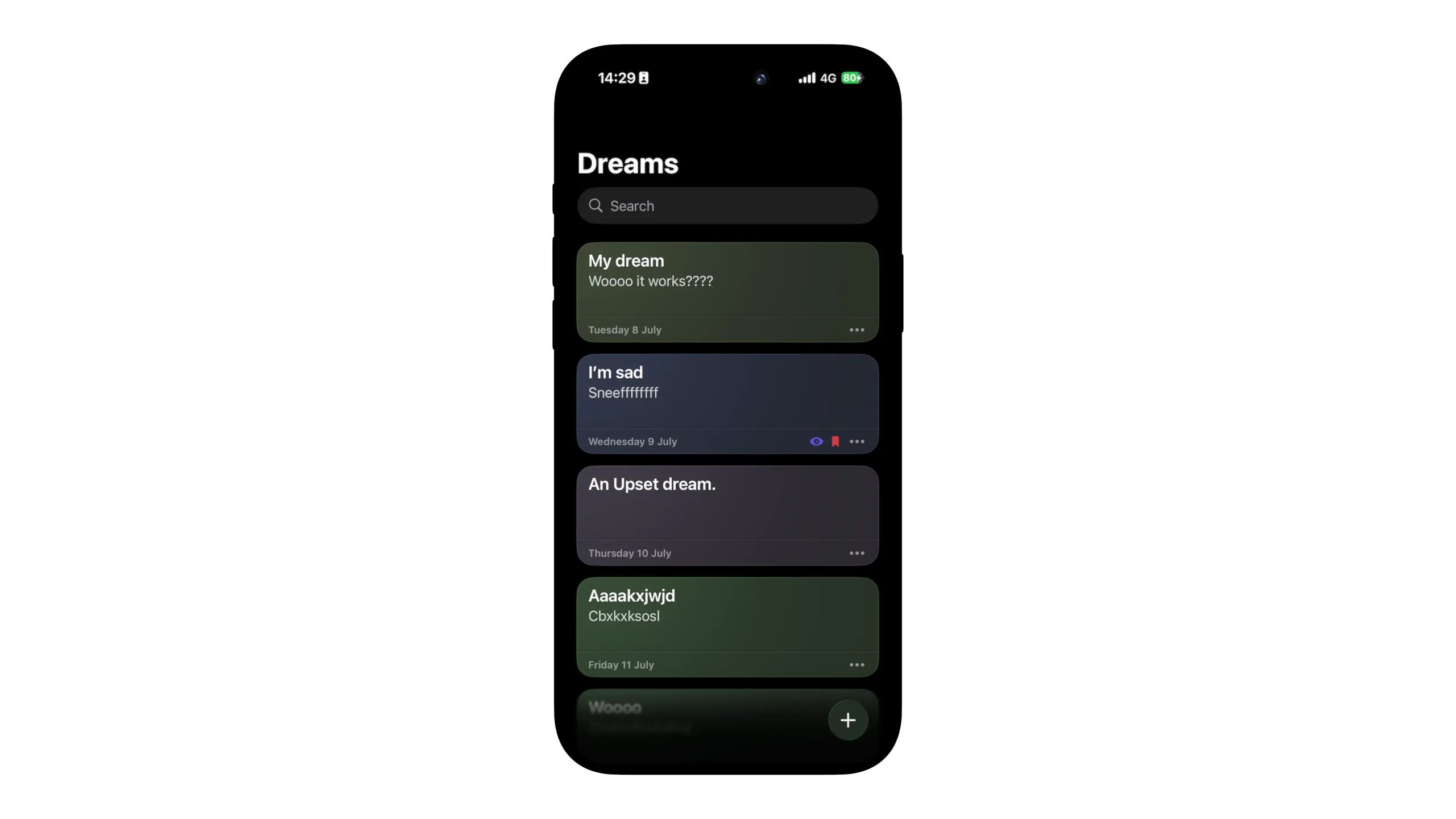
Meanwhile I implemented a very early WIP dream editor in order to add well.. dreams to design upon, so I thought I'd show you that as well (last image). Things can look pretty rough at first... I just copy pasted the emotion picker from the previous version for now, more about this later!
The Home Screen
The funny thing about working in a company among talented people is that they're a daily source of inspiration. I don't exactly recall how or why but I stumbled upon a WIP UI of my friends at AstroClub, which my colleague very kindly agreed to try and tweak / implement on device myself.
It was kind of tricky because it included complex blurs, masks, blend modes and overlays. But I had so much fun making it real using Metal shaders and CALayers. I recall spending all my free time on it for a few days, it was amazing to see still concepts come to life like this!
I also taken the liberty of adding an effect I've been obsessing over since WWDC: Variable Chromatic Aberration. It's such a lovely effect that just gives UI this magical "I don't know what kind of dark art is that but I love it" effect. I don't think you can see it very well on the screenshots but zoom zoom - it's here!
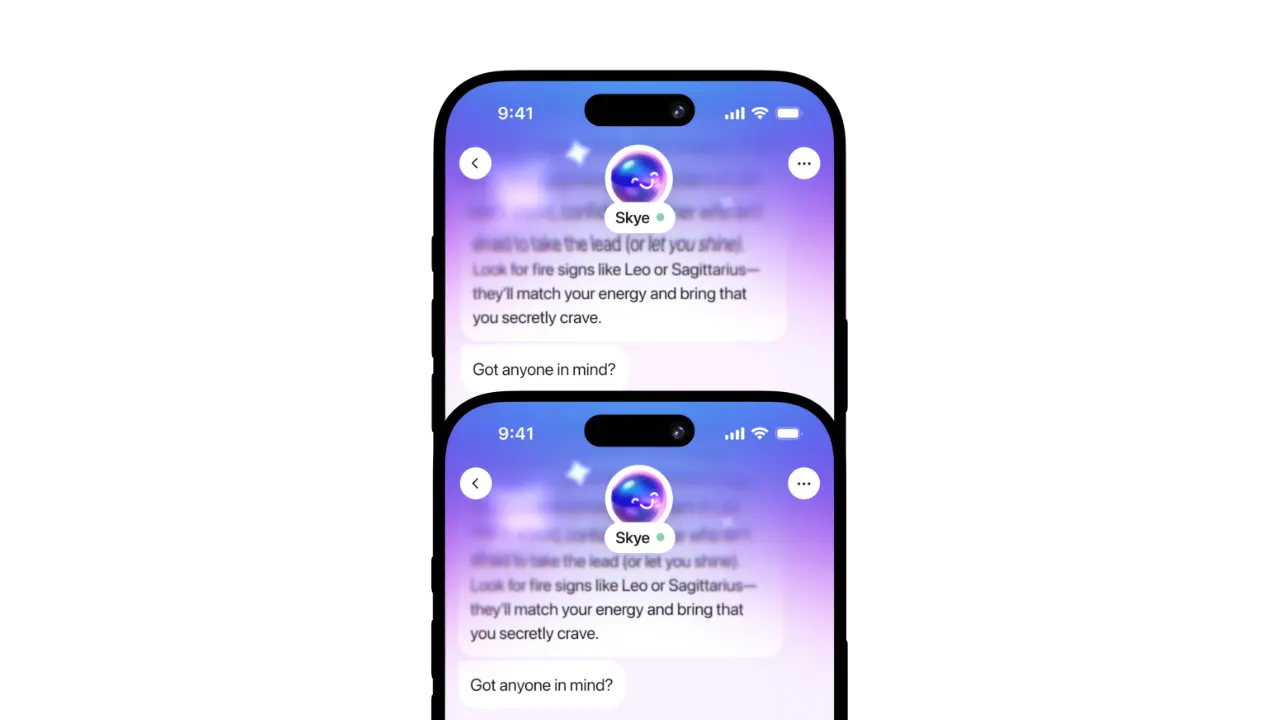
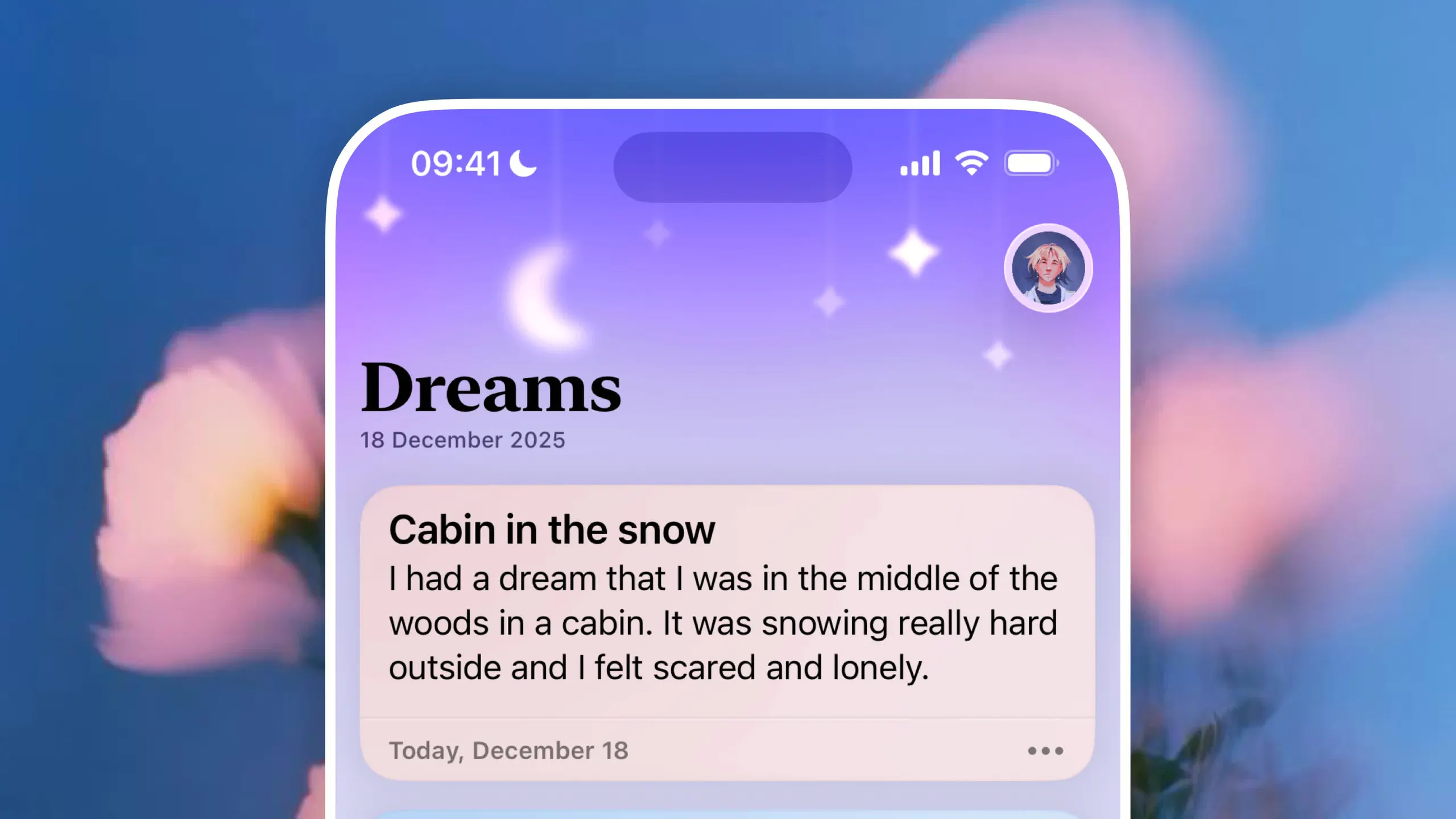
After creating that poc, I thought that maybe that backdrop effect would feel right at home in Egretta, and I quickly got permission to tweak it to fit the world of dreams better. I hopped on Sketch to make the overlays, a night sky, linked with thin threads to the top, sort of like a kid's room star decorations. I also added a moon, for obvious dream theming reasons. Even though I was quite unsure of this approach, it turned out quite beautifully, blurry layers with pluslighter blend modes never fail to disappoint!
I went straight to the app once the overlay designed. I like for my designs to be on-device as fast as possible. There's a world of difference between what you see on Sketch/Figma and what you see in the app, and that makes me way more precise and thoughtful about my design choices. For instance I would have struggled quite a lot to get the height or the opacity right if I weren't directly feeling the design in my hands.
Tip
Look at this Apple session about how the Maps team use SwiftUI to design their UIs.
Then, iterative design did its work. You can see in both screenshots I slightly reduced the height, tweaked the gradients and colors, moved the stars a bit and made them pop out a bit more. Later on, I also reduced the strength of the effects for both visuals and optimization (we want smooth scrolling here!), making them look more elegant and discrete.
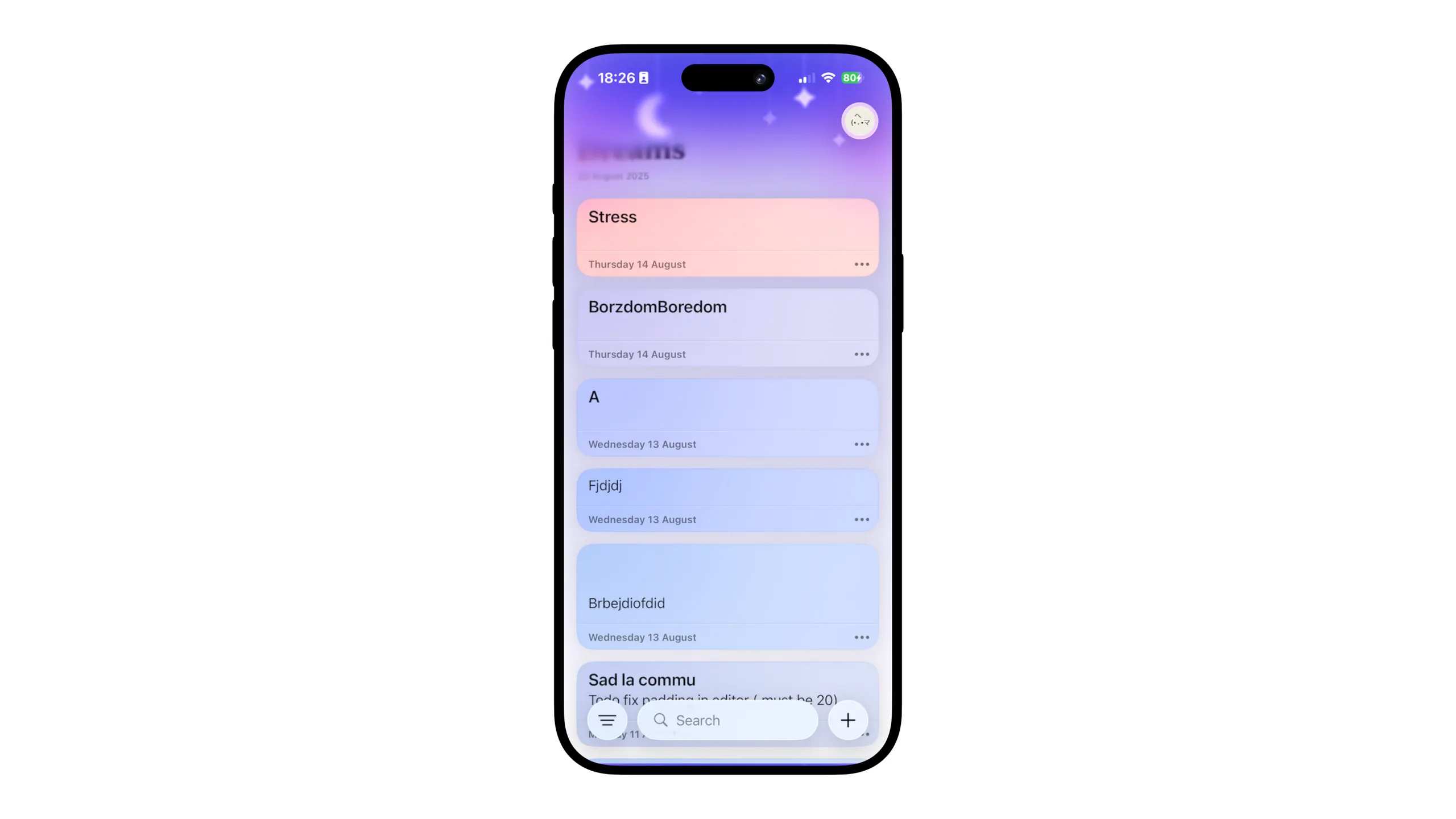
One issue remained, and a big one: what's that navigation title doing BELOW the blur?!?!?
I'm sure some developer folks already know what's going on, but it really bothered me to face that reality: large navigation titles on iOS are at the same z-level as your content, so overlays well..... they overlay the title as well...
But fear not since I eventually figured out the solution: behold Geometry Anchors, the API of All Time, the bread and butter of complex SwiftUI Interfaces. To keep it simple, it allows you to know exactly where is a UI element from a parent view.
So all I have to do here is add an invisible navigation title, attach an anchor to it, and add another overlay on top of the blur effects to replicate the navigation title - now that I know exactly where they are in real time. And the result is quite lovely!
The Morning Lights
This header work was a turning point in my thinking of what should Egretta look like. Most apps feel like dark-mode.png with moon icons everywhere to tell you you're in a dream app. It feels like something made to check out during the night.
But you log your dreams on the morning. Not during the nights.
Egretta should feel like a beautiful early morning, with the stars and the moon still visible but the beautiful shades of the sun rising up perking up. The purple-blue colors remind that perfectly, making light mode my favorite mode from now on, where I previously designed mainly for dark mode.
The Dream Editor
Once the dream list done, I moved on to tackle another very important piece of the app: the dream editor. It's where you go half of the time straight after opening the app.
Previously, this editor was step by step. You logged the emotion, then specific emotions, then topics, then people/places/items, then finally the content of the dream. It was too complex and troublesome.
I decided this time around to have minimal friction, and apply the principles of progressive disclosure. Most people just have a story they wanna write down, let's not force upon them the quirks of the app (emotion-first, modular etc...) so that everyone takes just what they want from the app, let it be write and go, or complex tagging and analyzing.
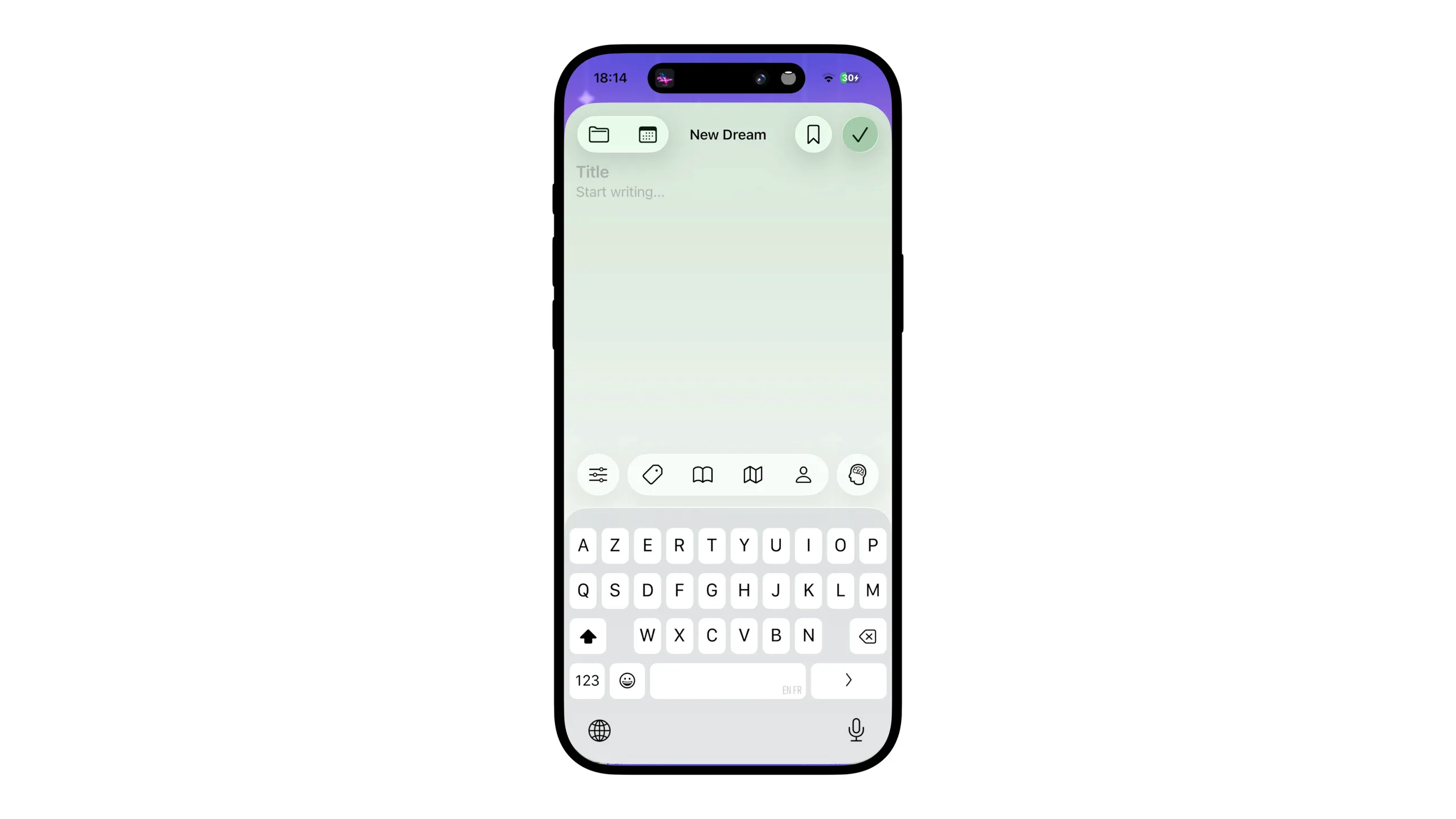
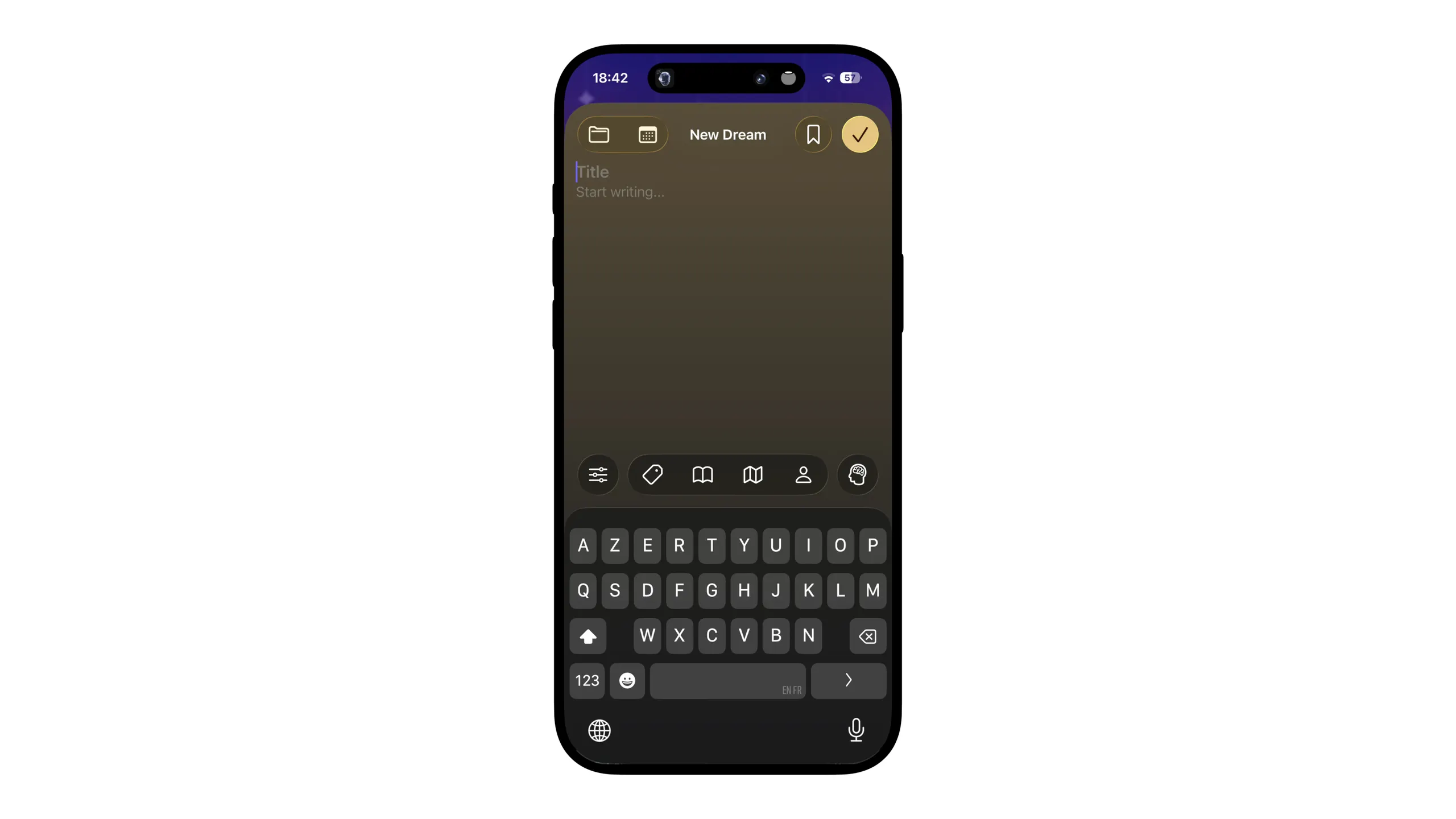
I thought I'd therefore build everything around the dream's content field. Upon opening, the dream picker sheet will show up, dismiss automatically when the user finishes dragging, and let them jump straight into the dream's content. After this, they can easily tap one of the options on top of the keyboard to show any of the other screens of the editor: people, details...
Now, time to dive into the Emotion picker - we've avoided it enough. While I worked on it since the beginning of the process, it actually got to its current state a loong time after:
Having already done the majority of the work on the previous version, I just copy-pasted the existing implementation and tweaked it. I made it shorter, changed the wording to be more explicit, made it more round and most importantly made the knob glass. Subtle haptics also happen when you hit the edges, switch from positive and negative emotions, and so on...
When your finger leaves the picker, it disappears. Infact, I figured that most of the time when you use this picker, you rarely lift your finger up before you found the right emotion - so why not taking care of the trouble to swipe the sheet down! If you made a mistake, it's just a tap away from appearing back again.
It's the part that stands out the most to people when I made them test the app. While it's a bit unclear how it works at first glance, you very, very quickly get the grasp of it. It's the kind of component you explore by yourself, not one you're being taught how to use explicitly. I'll do a smaller post about the whole process and inner workings of this component, but for now we only talk about its liquid glass redesign. :)
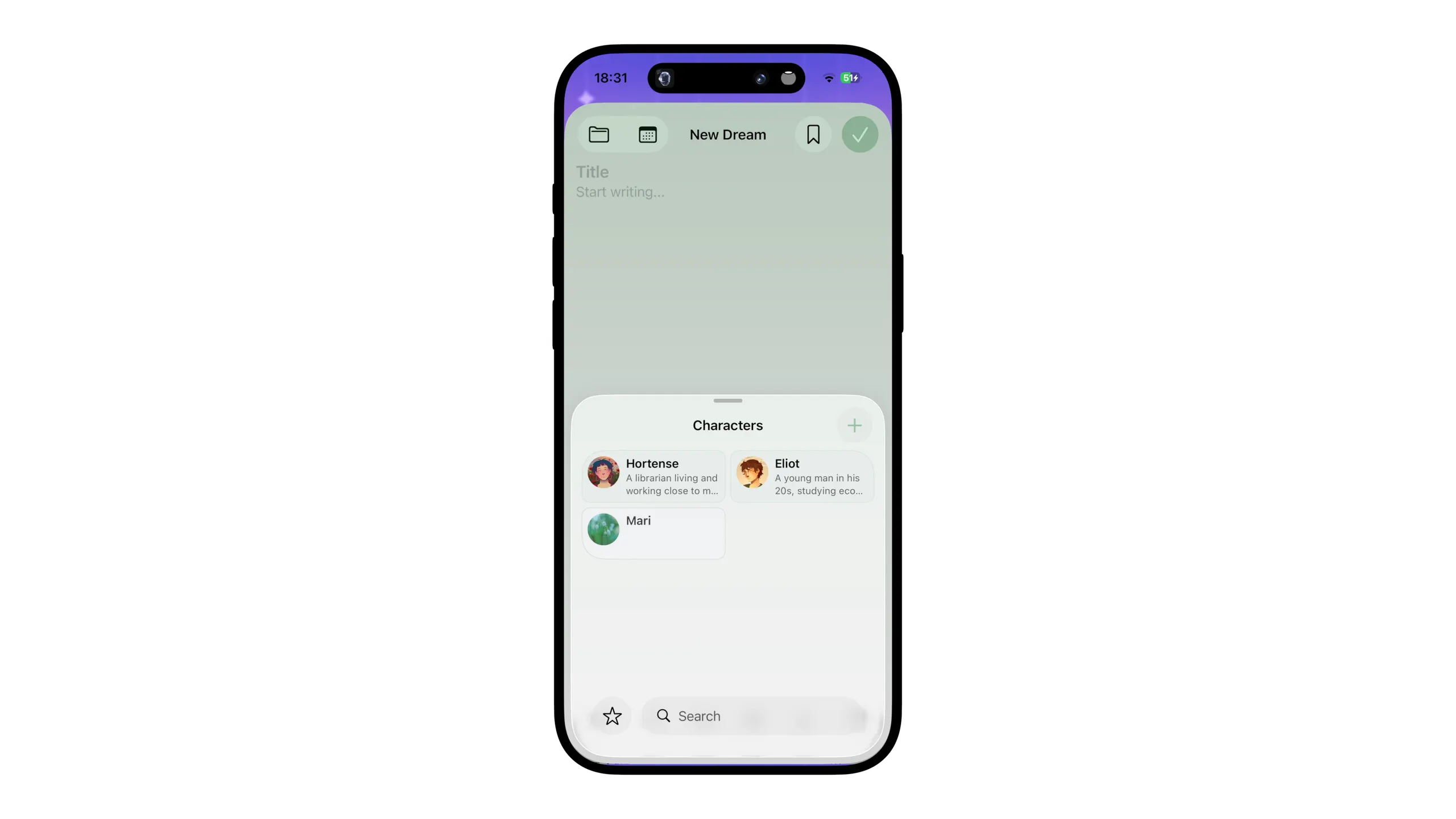
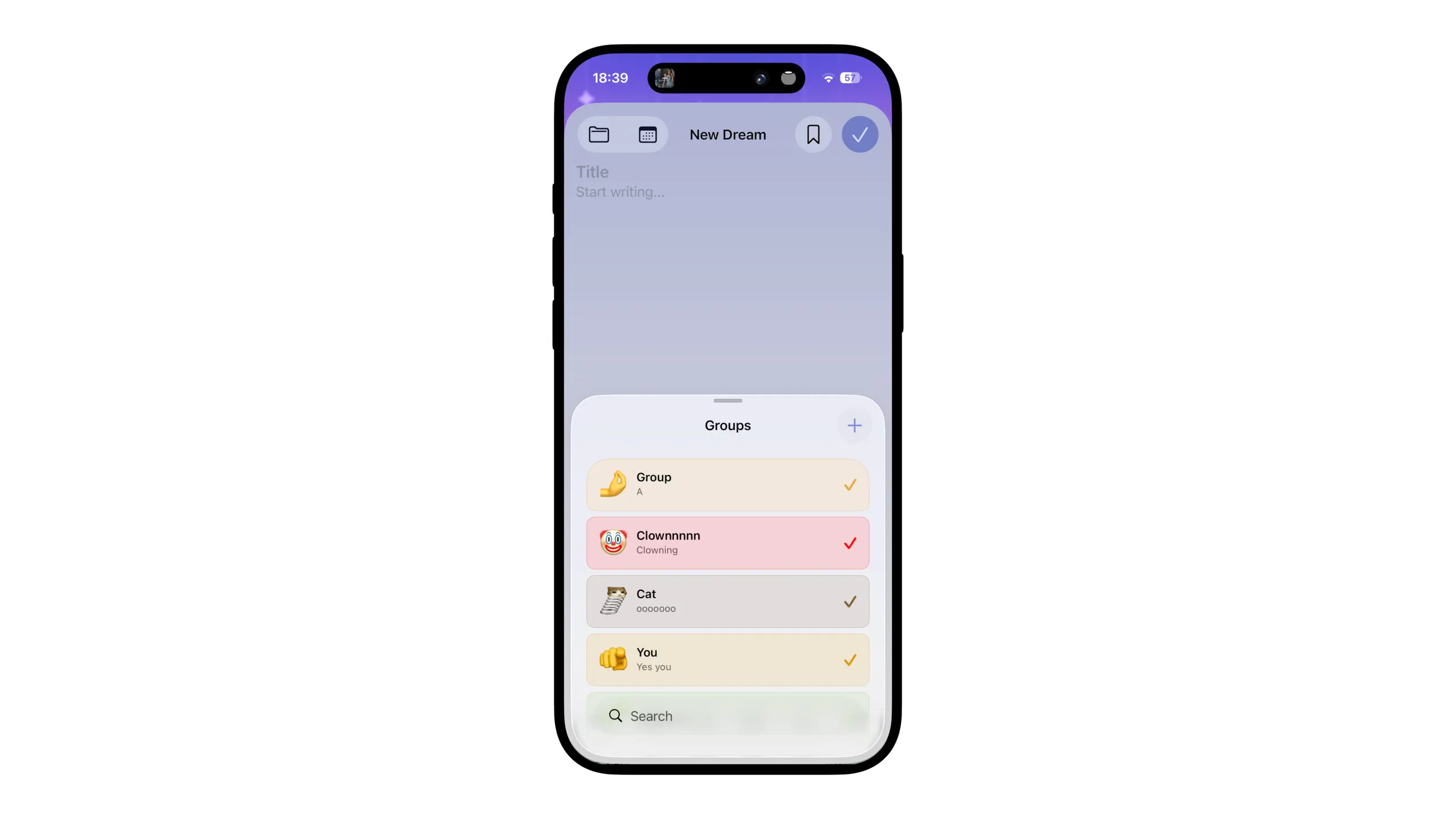
Finally, it was time to take care of the rest of what constitutes a dream in Egretta: Characters, Places, Topics, and much more. They all pretty much follow the same pattern: an expandable sheet (starts as a small one for quick picks, and you can swipe up for more complete controls).
I had to design for this the toggles for each element (element = character, place etc...). I decided to create concentric cards with uneven corner radiuses to create a bento feel. This led to the current design, with thin outlines to enhance contrast and signify hitboxes. Those concentric cards will be used everywhere in the design to group content!
While characters and places share the same 2-per-row and 3 lines layout, items are smaller (2 lines), groups are wayyy wider (1 per row), and topics are sitting in a flow layout. These differences in design take into account the needs of each kind of element, and helps the user pinpoint visually what we're talking about.
Similarly, characters have rounded icons, places have a square ones, and the rest have icon-based illustrations. More on that later!
Another thing I've refined too is what happens once you tap done. Previously you had a screen with XP distribution (yeah there was a leveling system). I removed that as it went in the way of the core function of the app, logging dreams. Leveling might come back in the future as it was a funny quirk I liked, but for now it's out of the way :)
I also of course added these small cards to the dream details views, with horizontal scroll to avoid clutter when there's a large amount of elements.
With all of that done, I moved on to the...
Element Screens
While it's so cool being able to select characters & more on our dreams, how does their details screen look? And their creation flow? Most of them look similar, so let's pick Characters as a nice example.
The previous designs included "quote block" designs for the sections. I decided against it this time for a more impacting centered image-name-description hierarchy, followed by the notes, tucked in a card. This allows you to quickly get what we're talking about and prepares for when I'll add statistics and other insight in the future (I'll just need to add bento cards, they'll blend right in)
At first, I used @Aether's Portal package, displaying a gorgeous scroll effect that moves your large titles right to the toolbar. I quickly landed with a first POC like so.
I then refined and refined to land with something very close to the current design. I implemented the notes-in-card design I talked about earlier, and added all the editing shenanigans. Love the small offsetted "Edit" menu on the picture! Liquid glass shines so much in these scenarios.
I also added one of my personal faves effects of this update: specular highlights. Inspired by liquid glass's ability to shift as you move your device, I coded a 1:1 replica of that small outline and added it in places around the app, including those pictures. It's very subtle when you hold the device, and look just great when you notice it!
Adding that subtle border added a subtle depth to an otherwise very flat design - love to see it.
However, while the header effect had a wow effect, it didn't felt..great. It felt good, but not satisfying as I hoped it would. Also, this added a lot of complexity in the code which started to feel kind of cluttered.
I then decided to go and cook my own sauce. I wanted Egretta to feel like part of iOS, even more than some Apple-owned apps. So that's what I tried! I created from scratch an effect that mimicks the large navigation titles morphing to small ones as you scroll up, but way more customizable and allowing for images. When the view it's attached to scrolls past the top, it hides it and shows it in the toolbar, with a small blur + move-up transition.
The result? Nobody noticed it. Every single time, I had to point it out to testers. Why's that? They genuinely thought it was a default iOS behavior. That meant I won! Such effects are what make the difference, when details that feels so natural you don't notice it stack up, you end up with a seamless experience that soothes the human using it by how fluid and intuitive it was.
I then moved on to the rest of the element's screens, following more or less the same principles.
An insightful variant between the detail sheets worth noting too, different elements have different illustration styles:
| Elements | Displays as... | Reasons |
|---|---|---|
| Characters | Circle | Standard in social apps - focused on faces (rounded) |
| Places | Rounded Squares | More space to display landscapes or images that don't have a clearly identified subject |
| Items & Groups | Emoji or Stickers | Most subject-centric. No background. Most items or topics can be expressed by a single regular emoji, or a sticker if not! |
This closes the dream editor & details chapter ! Let's move on to other parts of the app now.
Profile
We're lowly but surely getting there ! Now the app is usable, but it's missing most of what turns a POC into a full app. Starting with the profile.
The profile in Egretta is a big part of the app. It's the central hub for the dreamer to see insights about their dreams, and one of the main personalization options (as your profile picture shows up on the home screen). Navigation wise, it's the first option of the menu, showing as a large option so one can simply double click their profile picture to access it quickly.
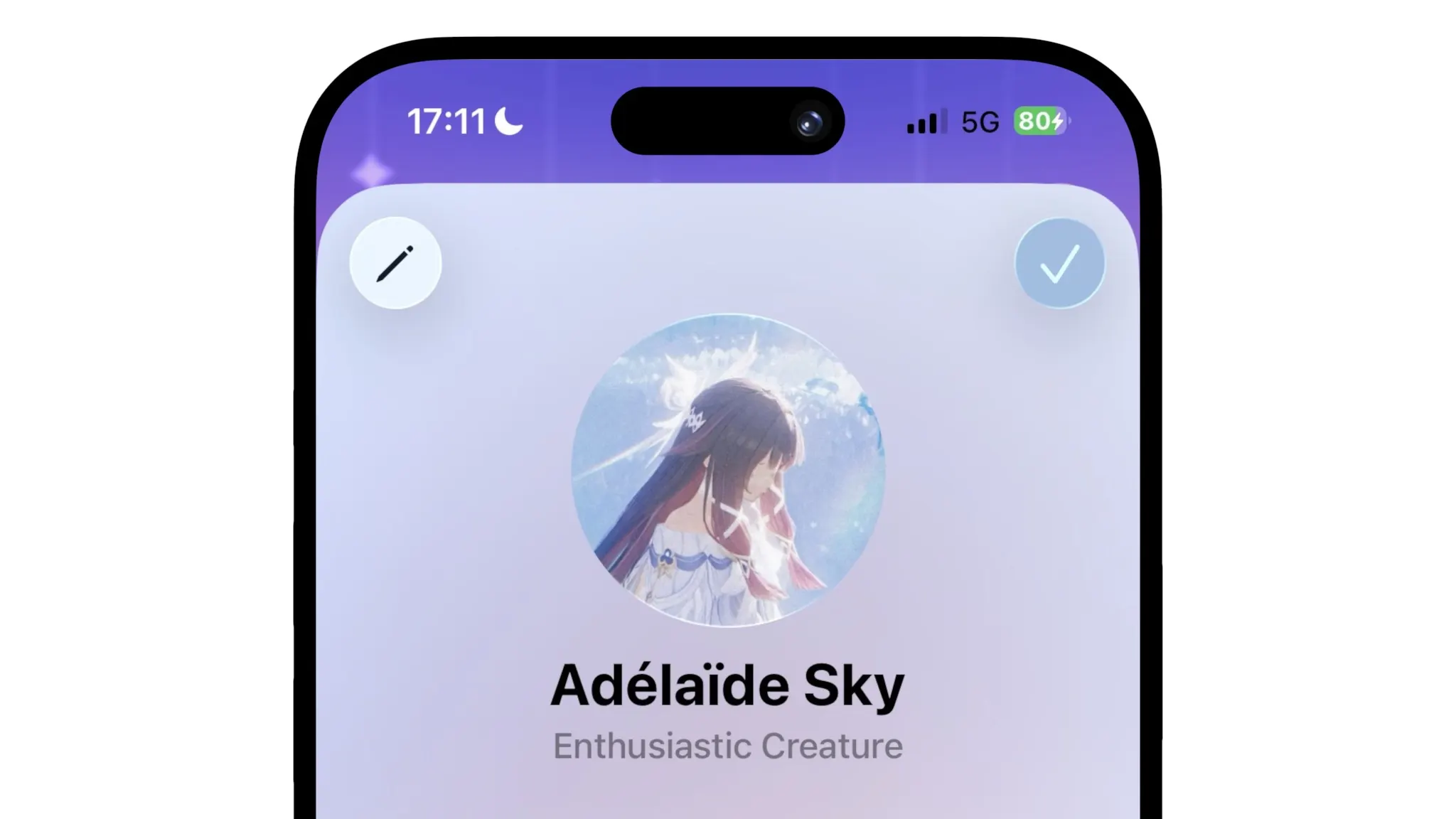
I started off by.. copying the character's detail UI. Both represent a character in your dreams! Being yourself doesn't prevent your subconscious to imagine you the same way it imagines the rest of the elements of your dreams. With that, I already had a strong part of the UI already done - great, isn't it?
In my early paper sketches, I knew I wanted some sort of stats-row, with a few broad counts on your journal: how many dreams you logged, how many characters, places, items... Now for the issue: actually designing it. We're working within a tight horizontal stack, it must feel immediately recognizable, and not only add data but enhance the view's look and feel.
I then came across Opal, and while trying it out I found one specific UI element that I could try to mimick and adapt to Egretta's language: their lovely day streak UI, with the blurred moving flame. So I got to work. It was one of those days where I was unhappy with every thing I came up with, and to be honest we were coming a long way, but it ended up looking great so worth it!
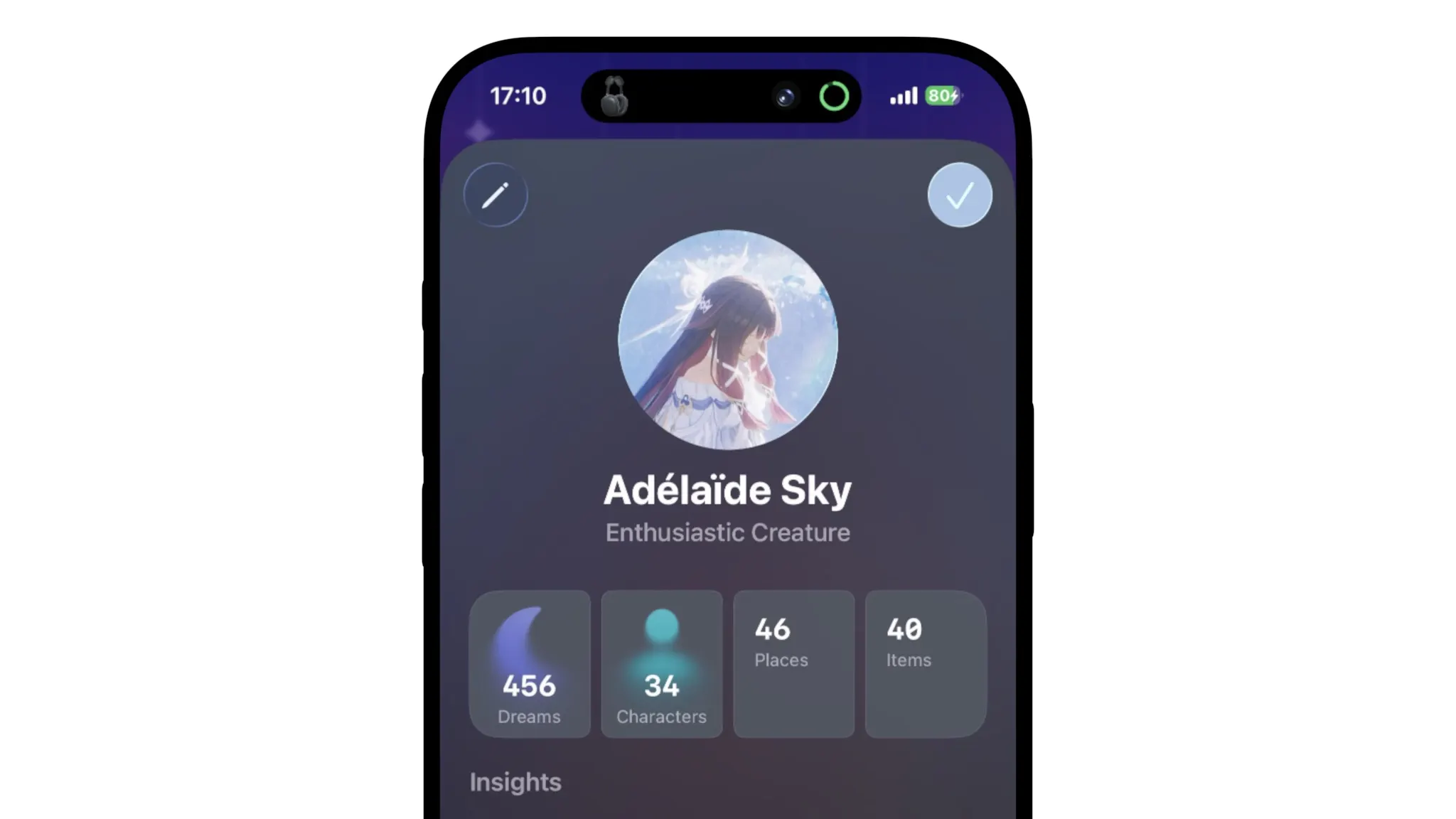
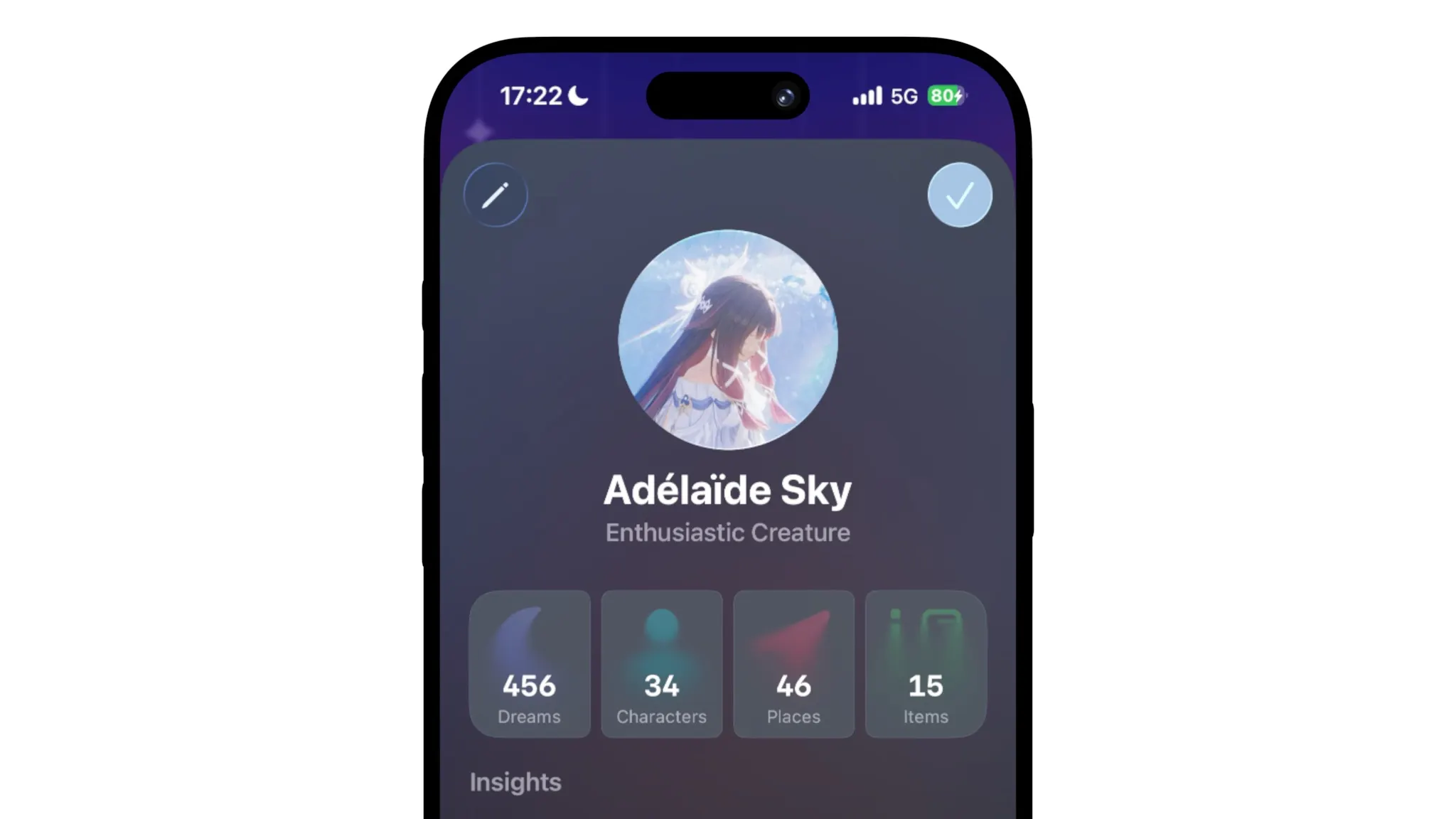
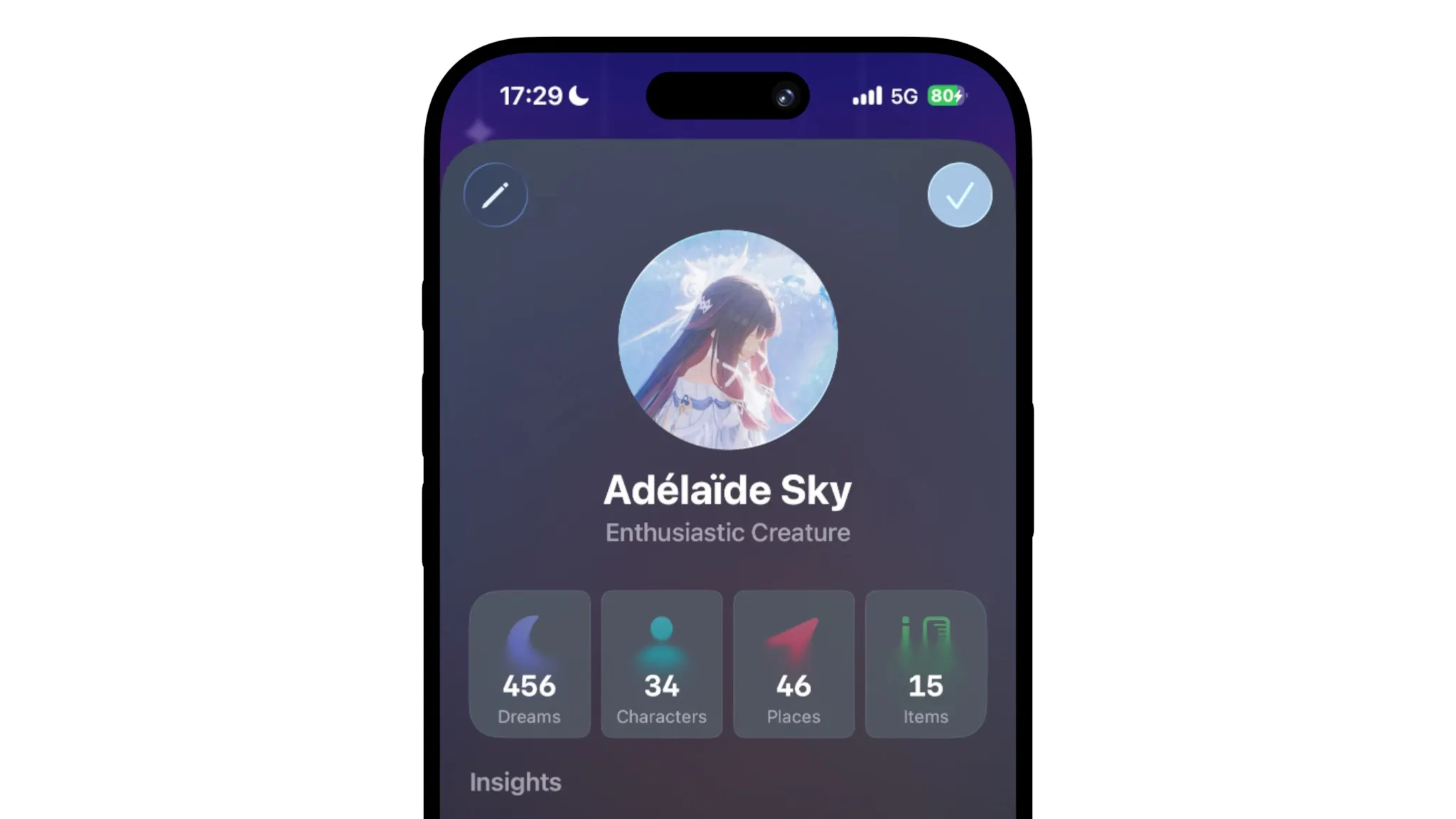
As you can see, the colors were... bad. Even though I improved the backdrop icon effect and overall layout to a great one, the colors were just feeling so, so off. I struggled with them for an hour before calling it a day.
Until I had an idea a few minutes after: what if I just don't pick the colors? What if the whole profile UI is driven by the user's profile picture colors? I immediately tried it out, and the results were just so great!
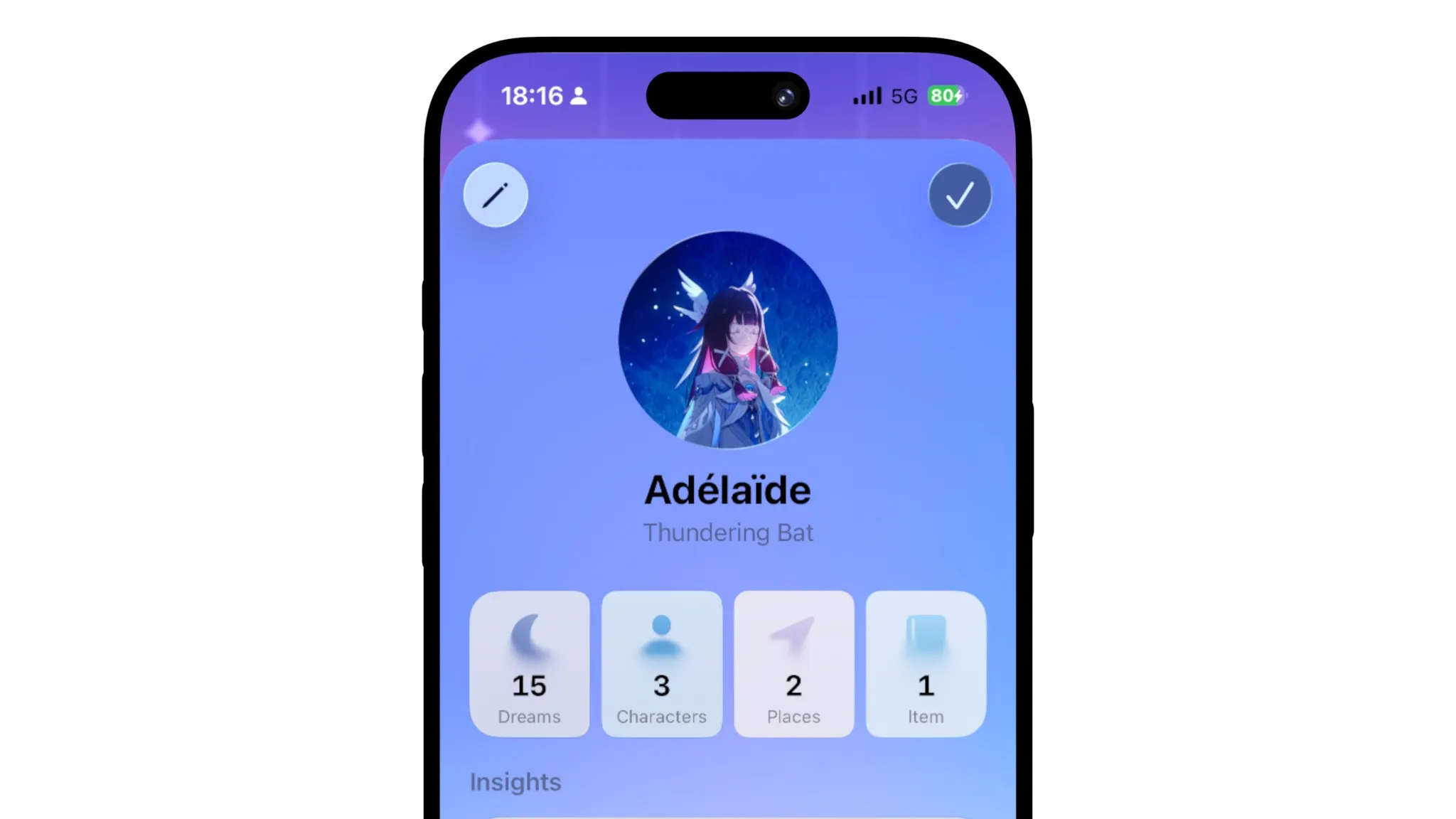
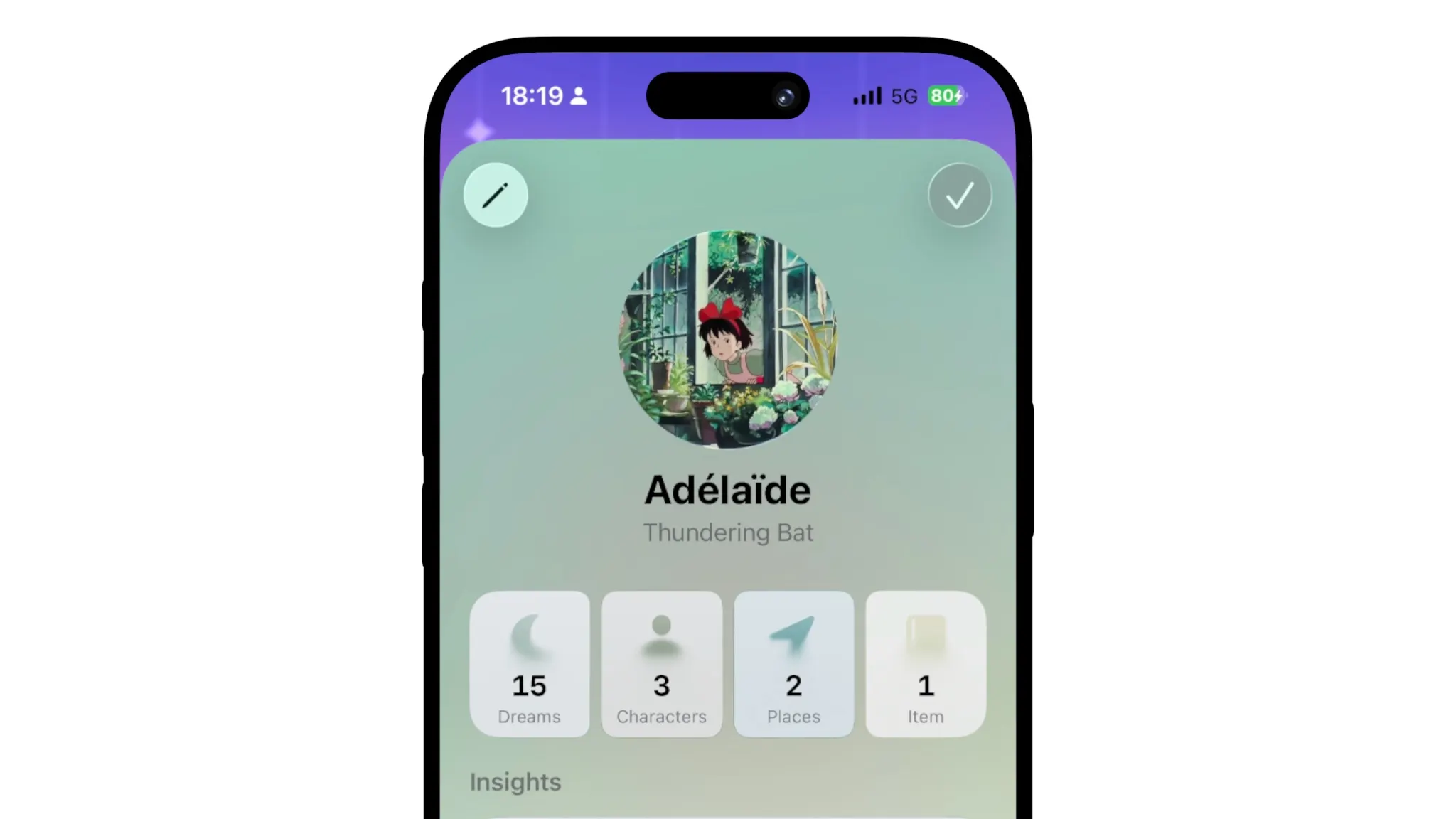
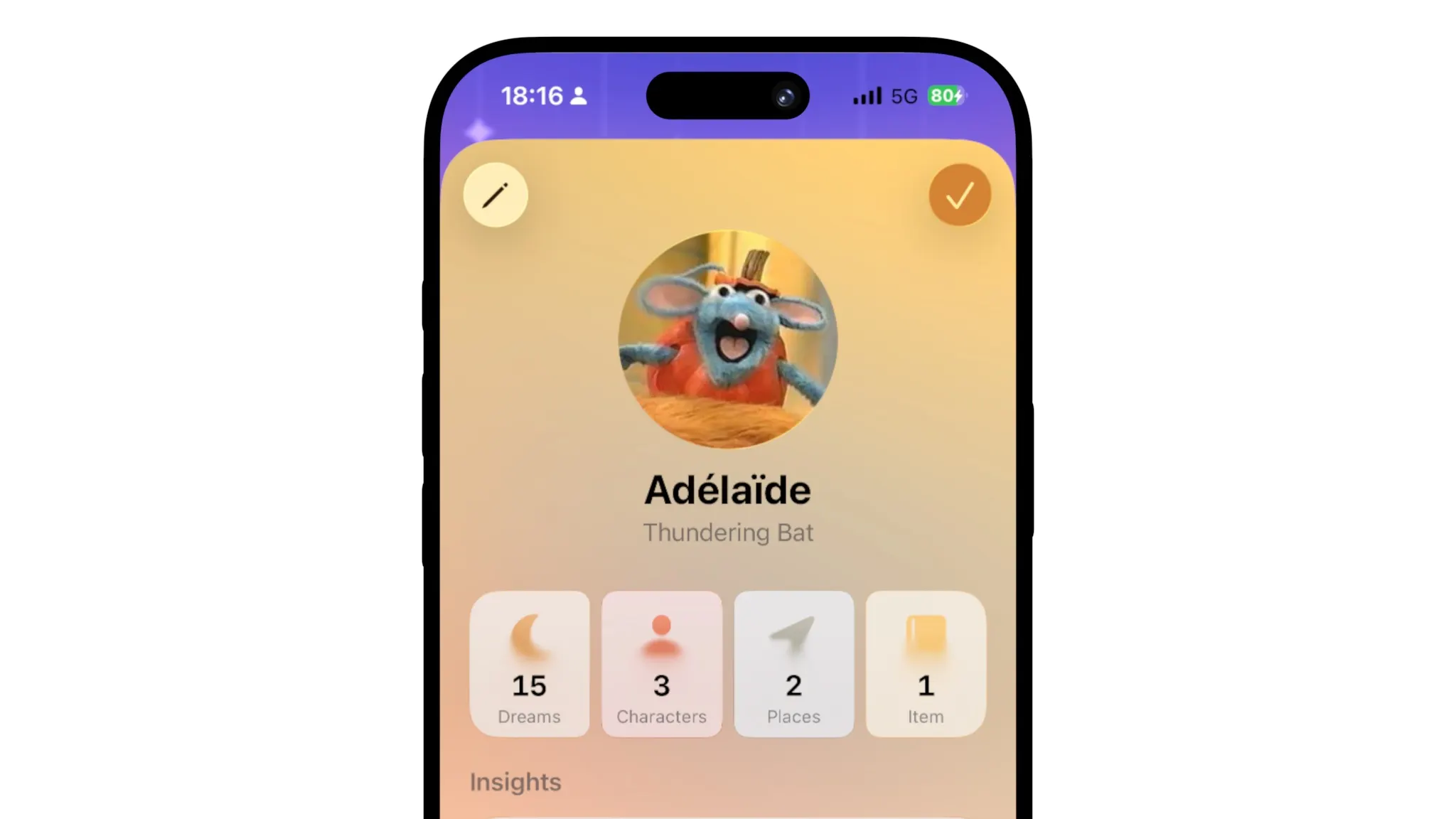
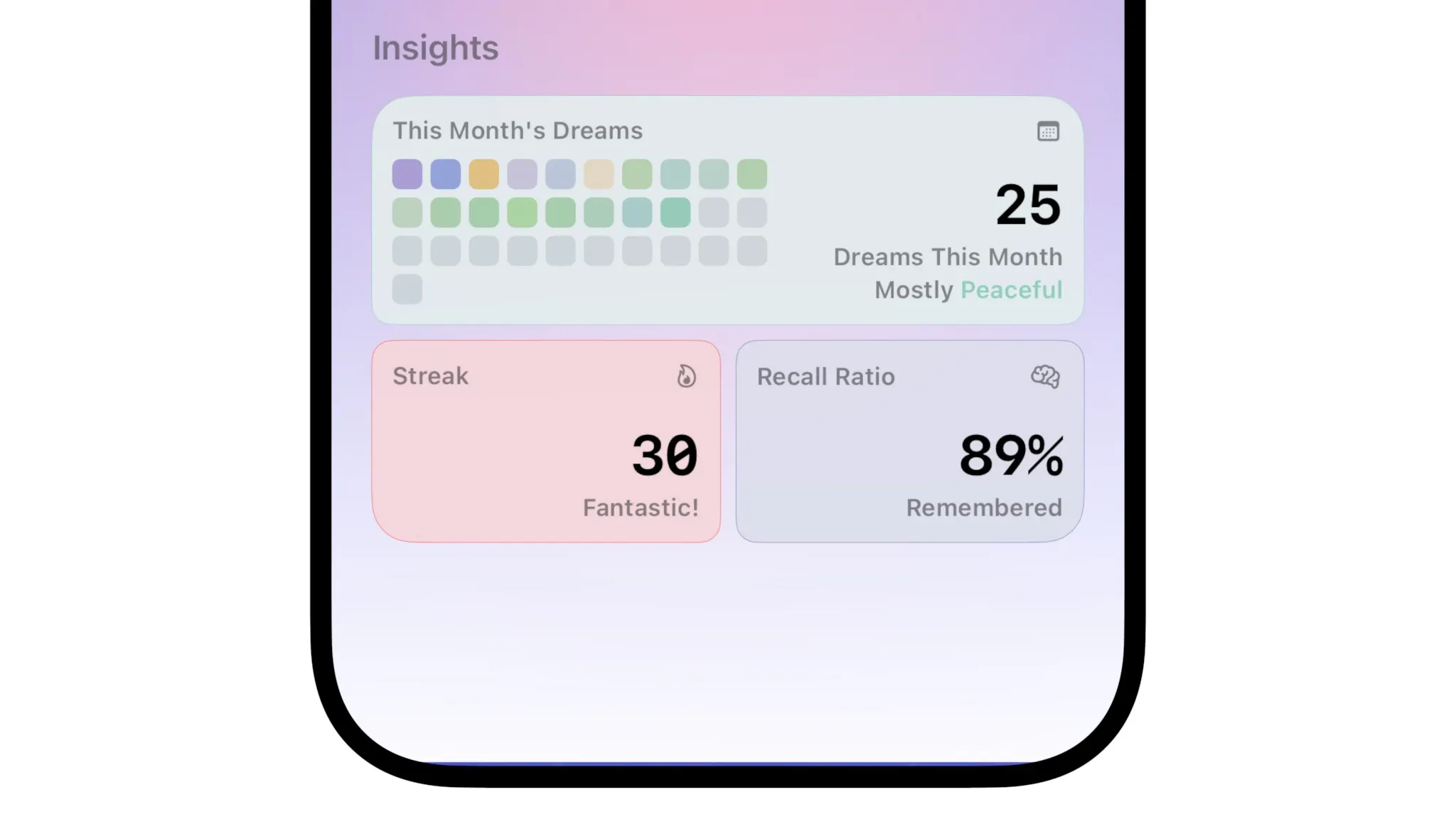
Now that the header is taken care of, let's tackle insights. I didn't have time to make a lot of them so I focused on 3 essential ones: the monthly view, the streak and the recall ratio. I won't enter their calculation details here, let's focus on UI.
I had this mostly designed from the previous Egretta version. These were designs I already touched up recently so they didn't felt too outdated. Making them work with the concentric style cards was more than enough to check them on the todo list!
Let's skip over the profile edit sheet - it mostly follows the Character ones and have nothing that interesting. Note that I added a way to customize your name's font though! Yet another fun personalization touch.
Onboarding
Wowwww, big part we're talking about now. The onboarding is the first contact between your world and the eyes of the user, the first handshake, the first interaction. It defines in the mind of the user the tone of your app in seconds, which means those first seconds are crucial design choices to make.
In the case of Egretta, the tone was already set from the foundations, and refined since then with this redesign. Gentle, playful, honest.
I gathered some inspiration from various app onboardings, eventually landing on a pretty clear idea of what I wanted. Content wise, I'll follow almost exactly the previous version of the app: Hello, Profile, Notifications, First dream.
The first component I wanted to make was the progress indicator. I wanted to use glass and icon replacements to express advancement in the process. So that's exactly what I did! Very proud of it code-wise too, as it uses anchors and other power SwiftUI APIs.
I also very quickly added a moving background - like the previous design - for now with the wrong colors...
I honestly was very happy with the result! The snappy and bouncy animations make it reactive and alive, and blends beautifully with the symbolreplace animations.
I then added the colors of the app, and a subtle blendmode to the icons to properly mix with the background. I also added the bottom button, a big glass one, whose label will evolve as we go through the pages. With that, we're done with the structure, and we can focus on the content.
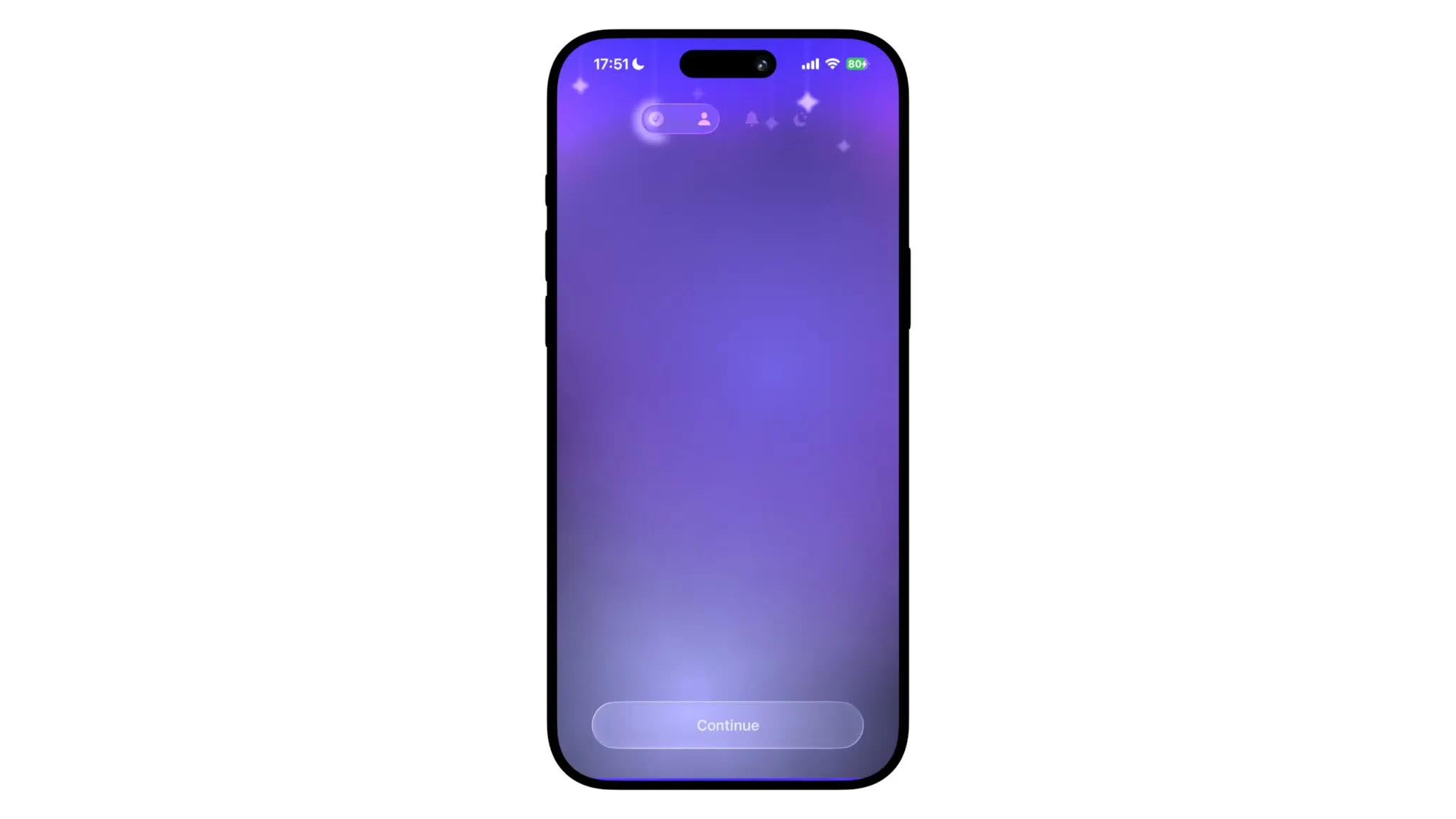
Now, let's talk about that first connection I told you about before. It's time to honor Egretta's voice with a warm hello.
As soon as the app opened, I knew I wanted something to move playfully to greet the user. I also knew I wanted the labels the user tapped on to feel active (no "next", contextual labels), so that's exactly what I did.
Once the user taps the button to "reply" to the first contact, the background morphs, becomes vibrant, lively, and the screen updates to display one of the app's slogans. This first interaction feels both like pulling a curtain and like a genuine interaction - and that's not even feeling the haptics, that add depth and the waow effect the app deserves.
Next is the profile. I wanted to avoid as much as possible the "Create account" feel. Egretta is a journal, so it must feel like opening a new journal and writing your name on the first page.
This page consists of 3 main settings: The name, the profile picture, and the "title" (bottom button). Let's focus on the name and title ones.
To both avoid safe area issues (if the phone is too small) and add a nice animation and feeling of focus, I made it so tapping the name field removes all of the other UI elements, and updates the label to further explain this field. It was kind of complex to make it work (had my share of SwiftUI Transactional bugs along the way), but it ended up feeling soo great to use! There's also a small haptic playing when you focus/unfocus, that adds further depth to the "zoom in" animation.
Another fun control here is the title selector. You can't pick it yourself, it's kind of a lottery where 2 words are randomly stitched together and you have to reroll it until you're happy, or leave it like that - exactly like Arc's member card one! I thought why not animating it - so that's what I did, but the most exciting thing about it is the haptics. Whenever you tap this button, your phone kind of rumbles, adding a very satisfying feeling of rolling (in the literal sense). Go try it out yourself!
Next up is the notifications pane. Unlike a lot of apps, Egretta's notifications are fully local and you only pick when they may appear. Pretty straightforward here, a simple button (asking for permission), and once that's done, a time selector.
I added a glass background to the picker to match the aesthetic of the rest of the screens and as it played nicely with the colorful background. Small anecdote: I had to scale down (literally scaleEffect) the time selector to fit perfectly :')
Once past the notifications, there's only one step left: log your first dream!
If you decide not to, the screen slowly animates and blurs to the home screen. If you decide to, the sheet appears, and once you tap done, you notice you're already in the home screen!
The magic of this effect lies in the handling of the app's main view that is technically underneath the onboarding. I track individually the presence of the onboarding and the presence of the home screen. While most of the onboarding happens without the rest of the UI loaded in, it loads silently in the background before you reach the end of the onboarding, so animations feel smooth all the way through.
Settings & Misc
Well everything is pretty much done. All that was missing are settings and some details around the app. Let's take a look at the settings.
I must confess my love for Forms... They're limiting, sure, they're boring, maybe, they're very tricky to get right, exactly. But they're so lovely when done right. There's beauty in simplicity (I want to say this with a british accent in front of a white background...), and you just know your way around them so well.
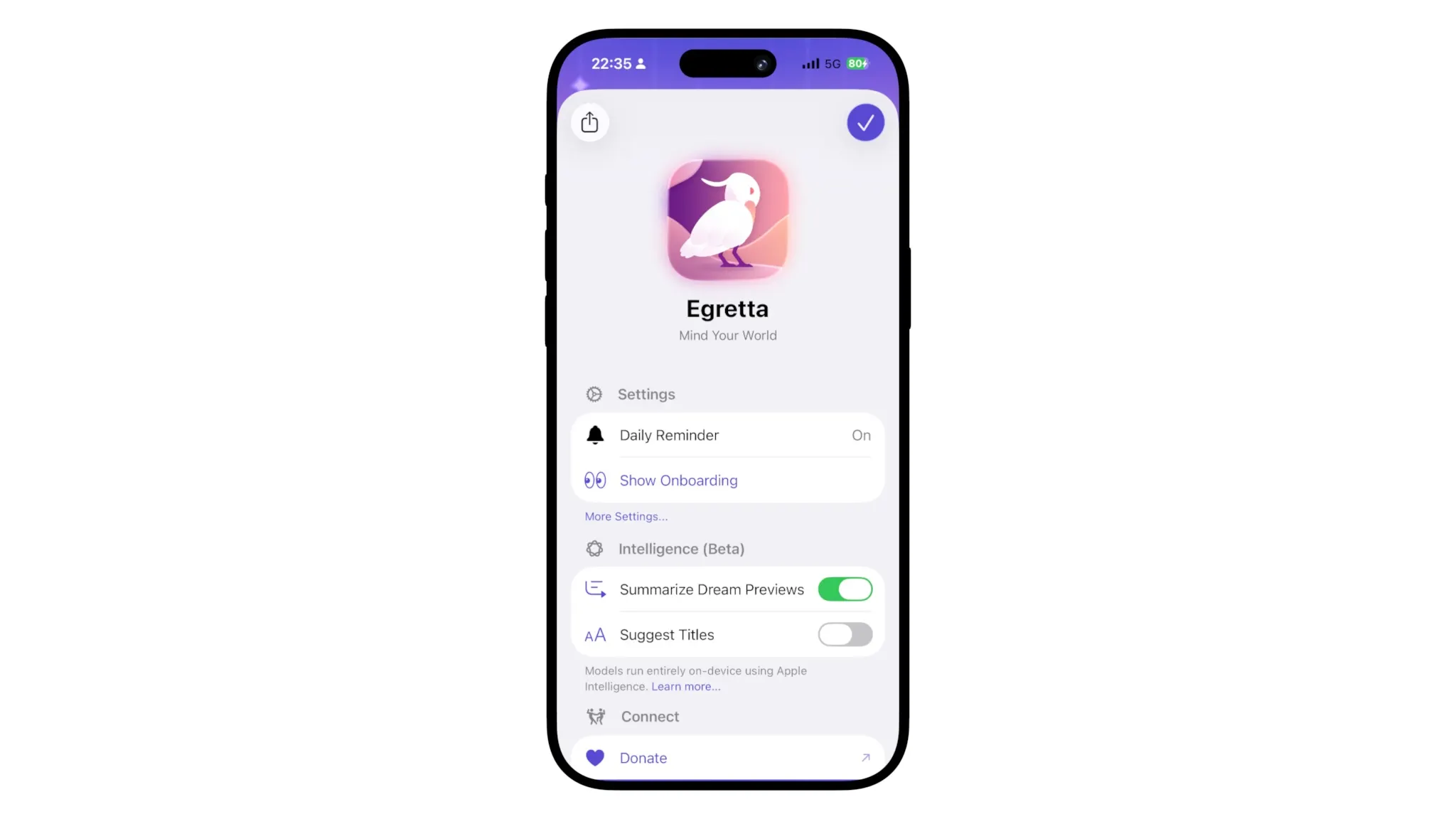
I kind of copied Deco's settings header layout. The app's icon, its name and slogan, with a subtle glow. Works well, is modest (we're still in settings..), and gets the job done.
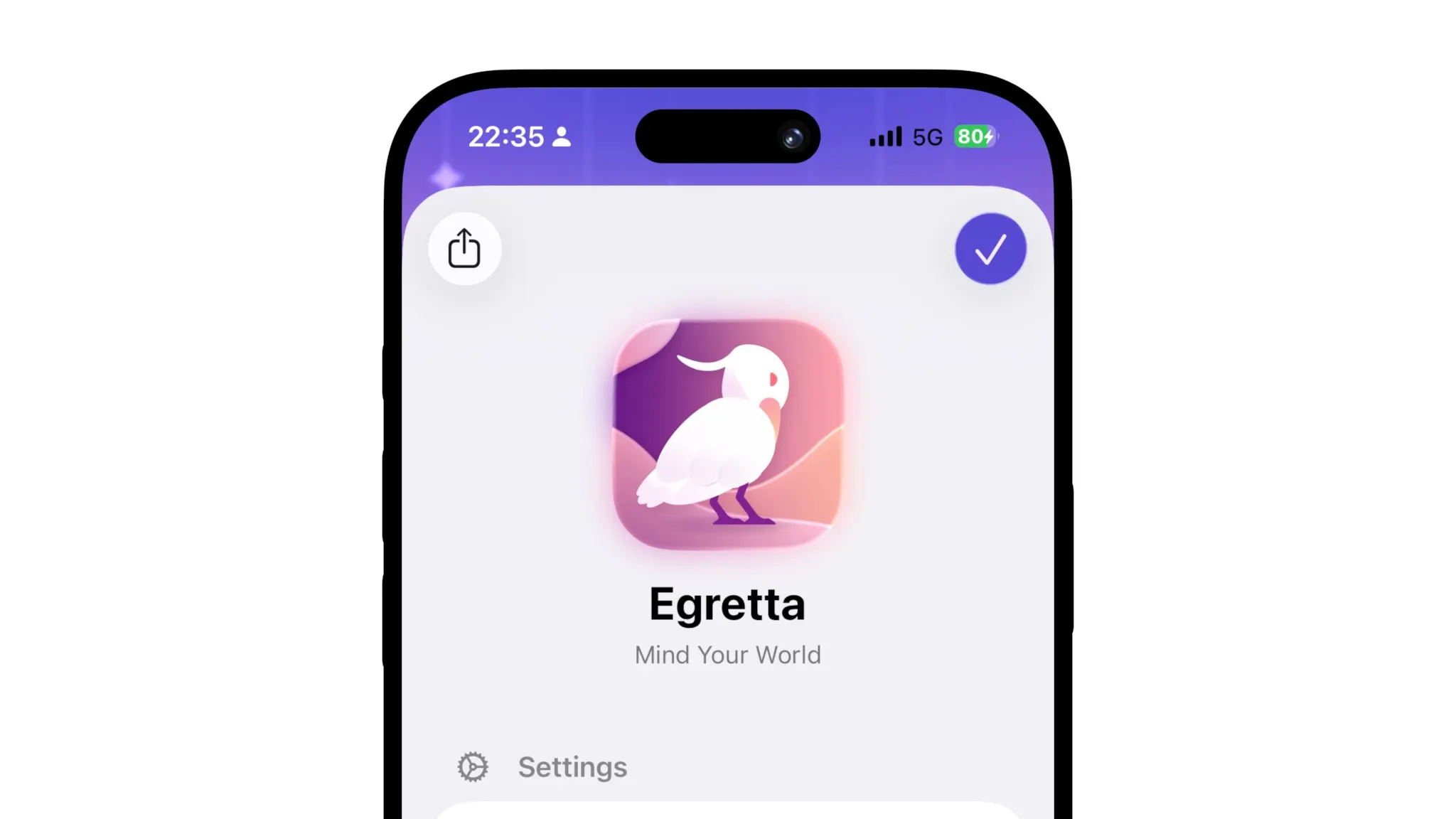
I also applied what I call the Form Design Basic Conventions, including icons in the sections' headers, icons in controls whenever possible, small small sections, and many more dumb rules I give myself that I'll explain in detail one day...
Structure wise, I ended up going for Settings → Connect / About → Storage/Data → App version → Legal & Support
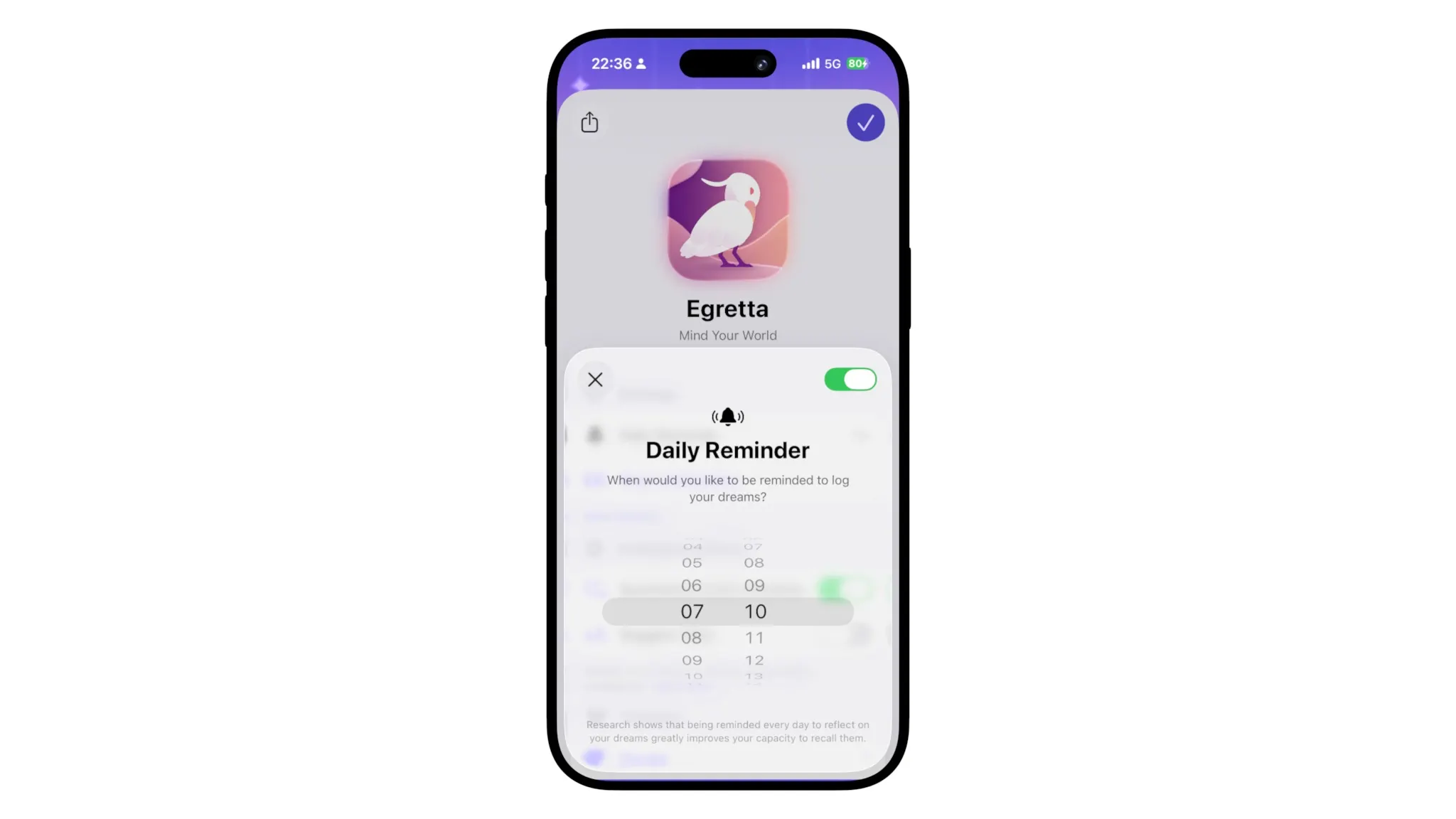
Settings only had two things to take into account at the time: Daily Reminder & Show onboarding. Later on I added intelligence-related settings (talk more in another article soon maybe!). The Daily Reminder settings were originally in a navigation destination, but I found CapWords's implementation too perfect to not to do the same, say hi to the small-sheet-with-a-toggle-in-the-toolbar! A pattern I'll definitively reproduce... This just feels so great to have a toggle in that place, once you try it you can't go back...
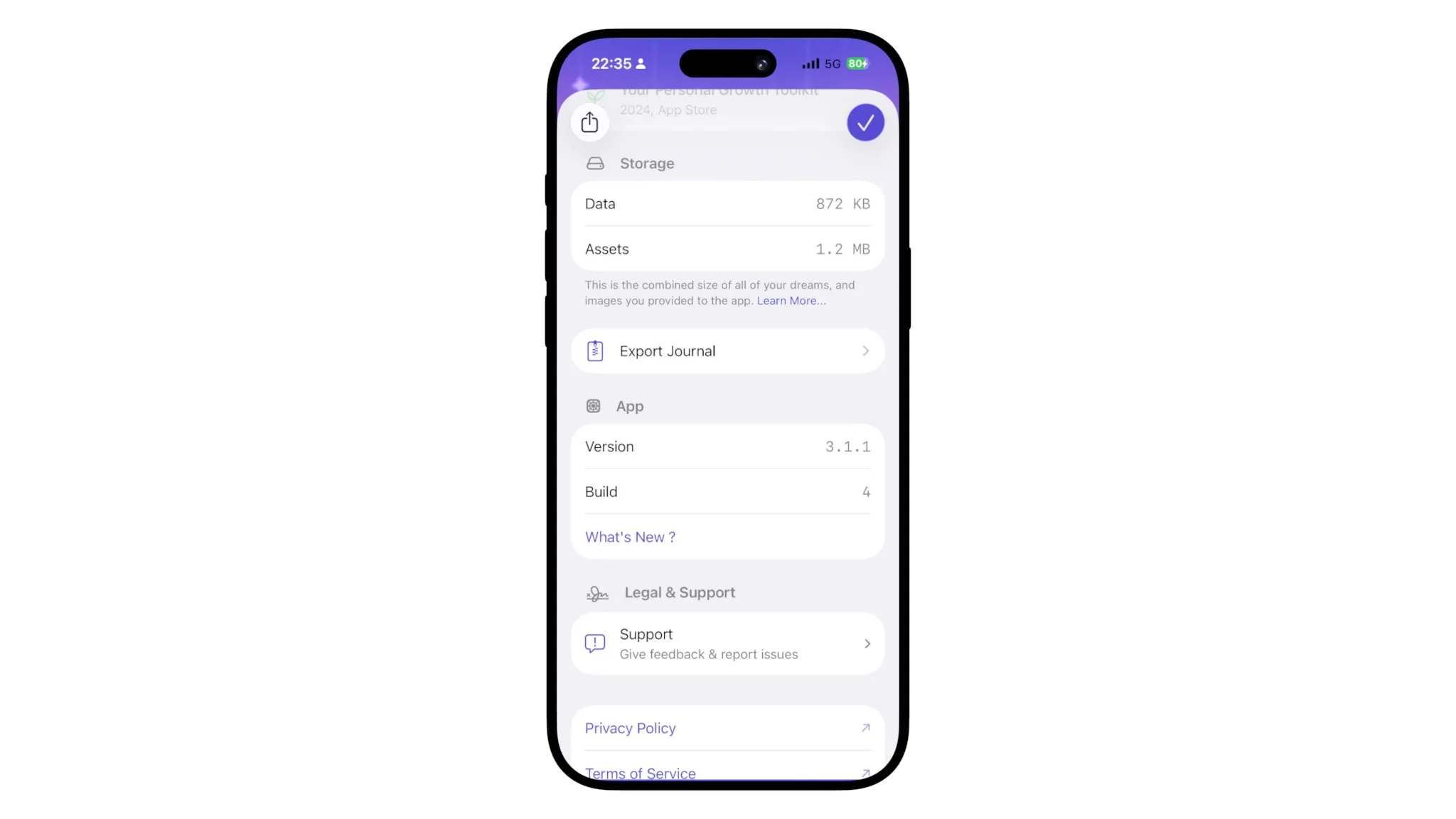
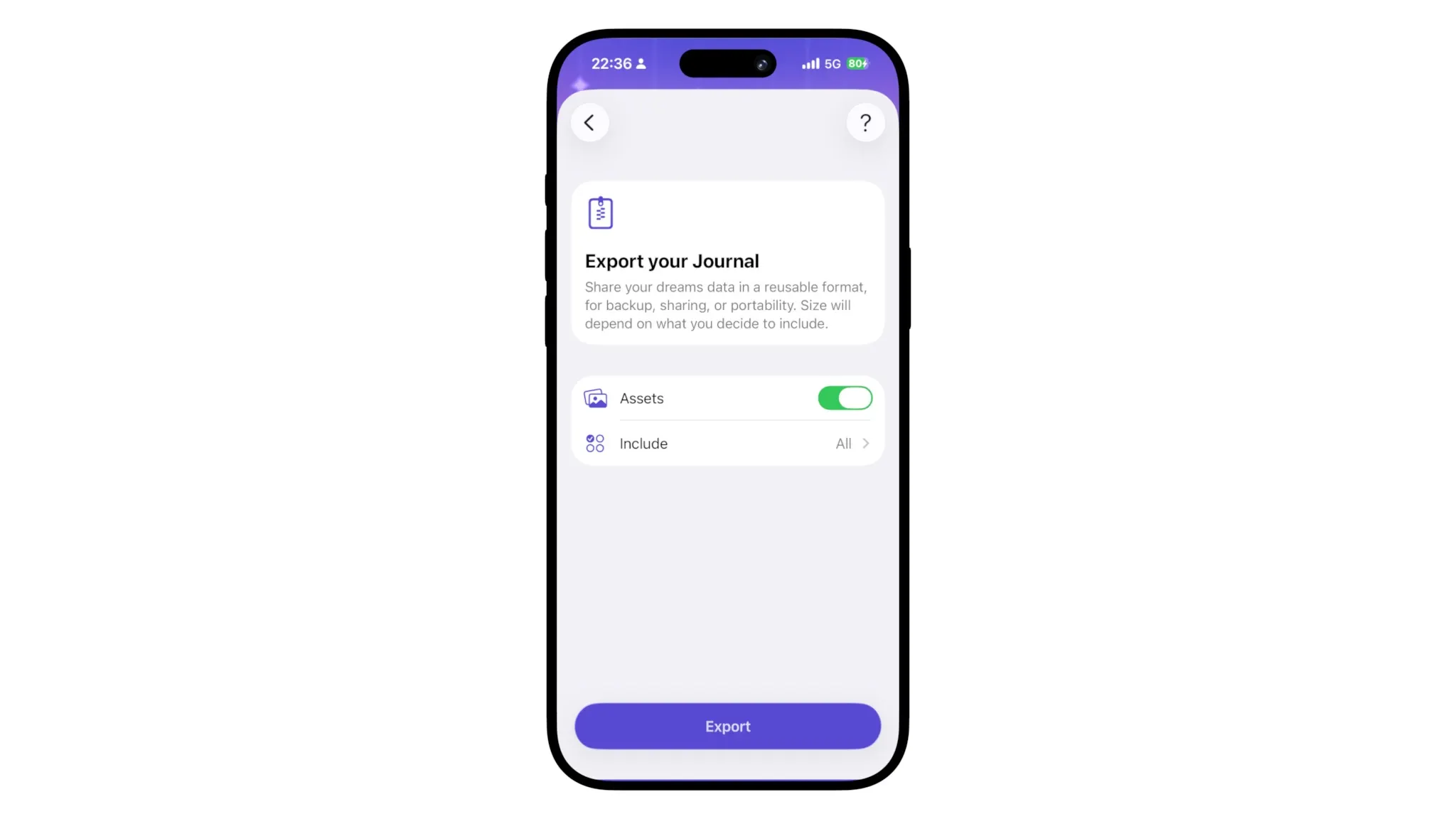
The rest of the settings are also pretty straightforward. After all of my socials and information, I added a way to know what size your journal is exactly, and get tips about how to reduce disk usage. This is a surprisingly useful feature and I had fun coming up with the mono displaying of the numbers.
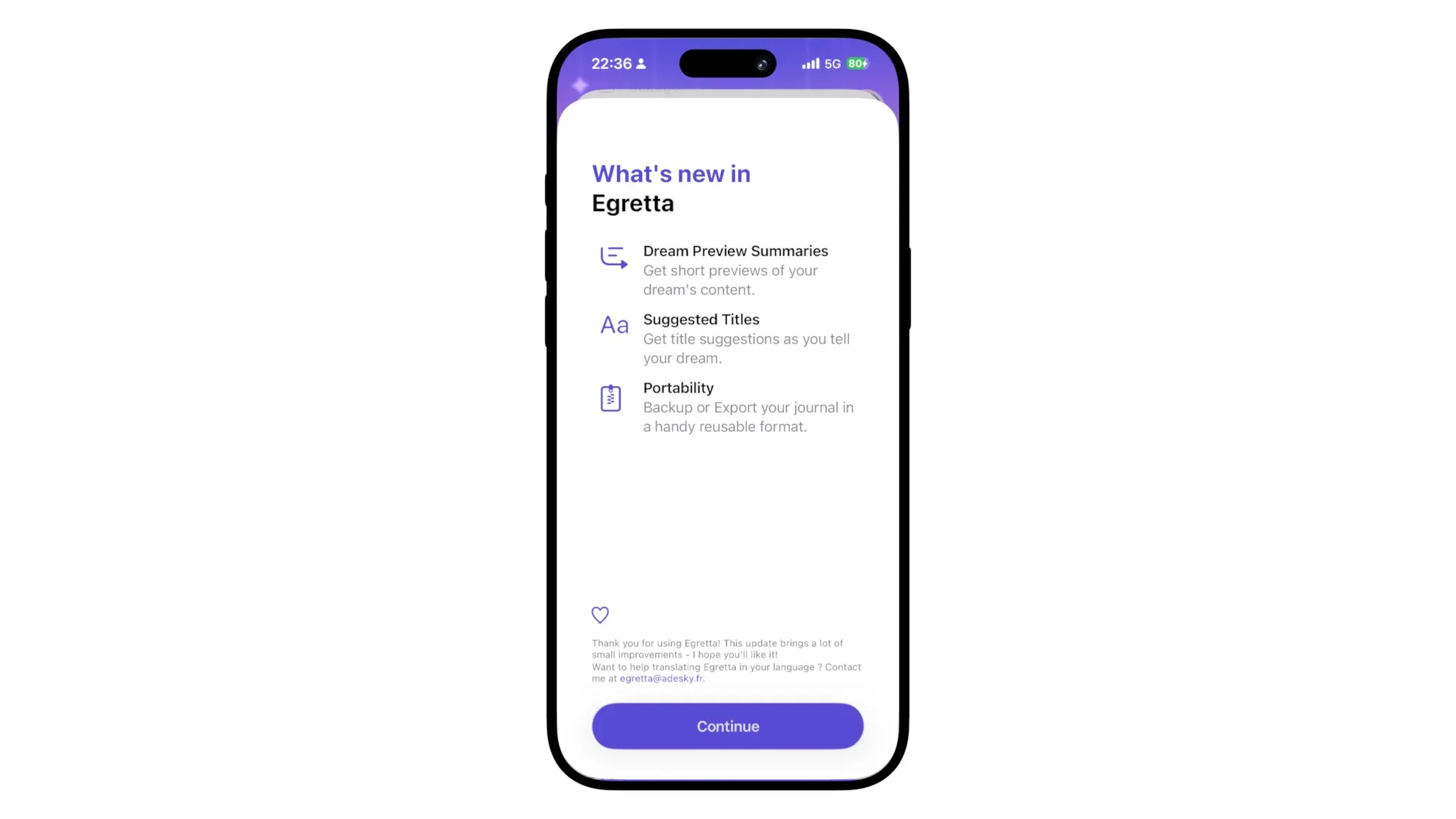
The only things that remained were nerdy or regulatory stuff. The app version's info, a way to bring back the what's new sheet (that I also had a lot of fun designing!), and finally all the legal stuff, along with a way for users to send feedback directly in-app (I'll maybe do a small article about it someday).
If you're reading this far, go tap the cat at the bottom of that setting sheet, something may happen!
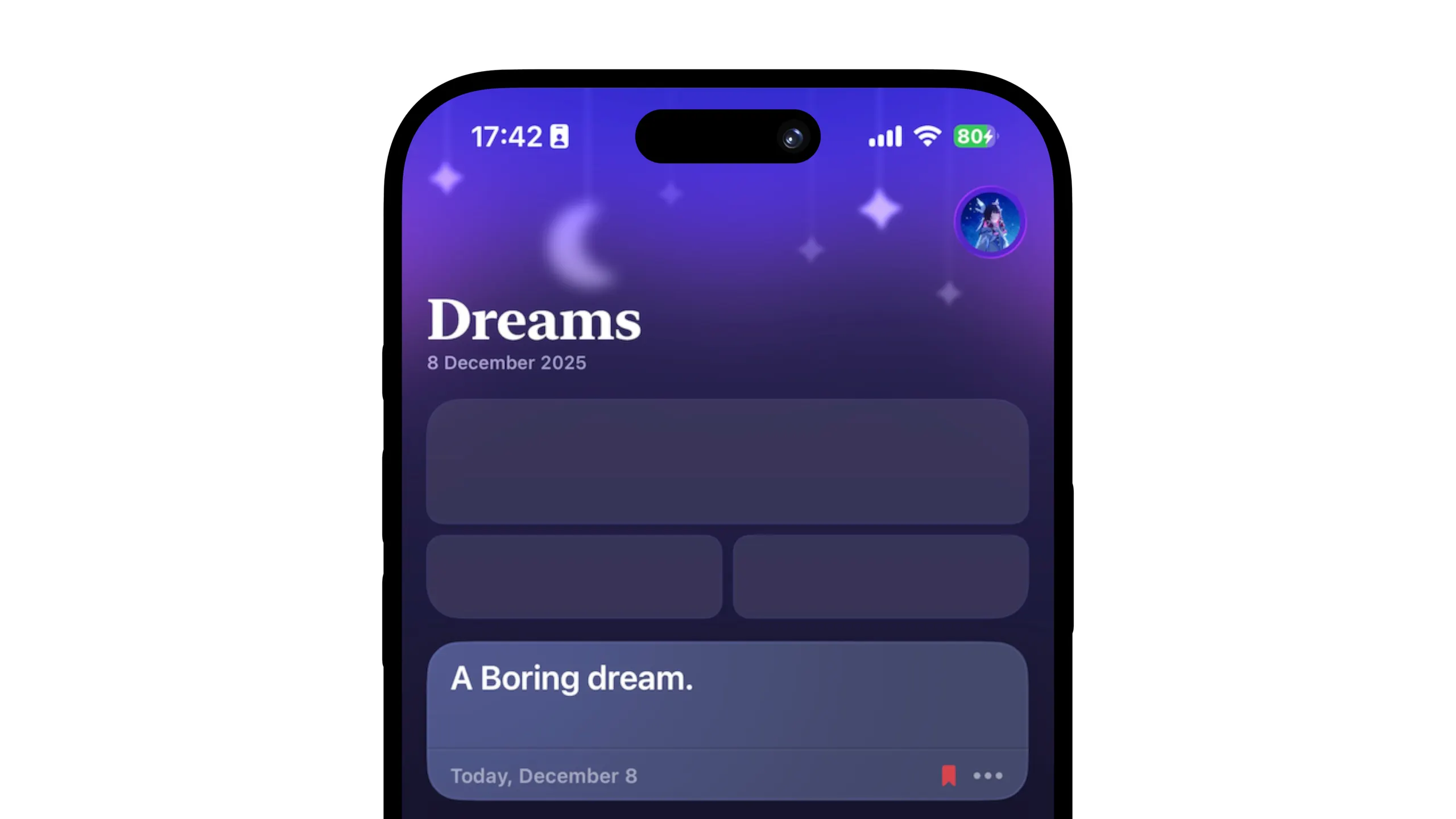
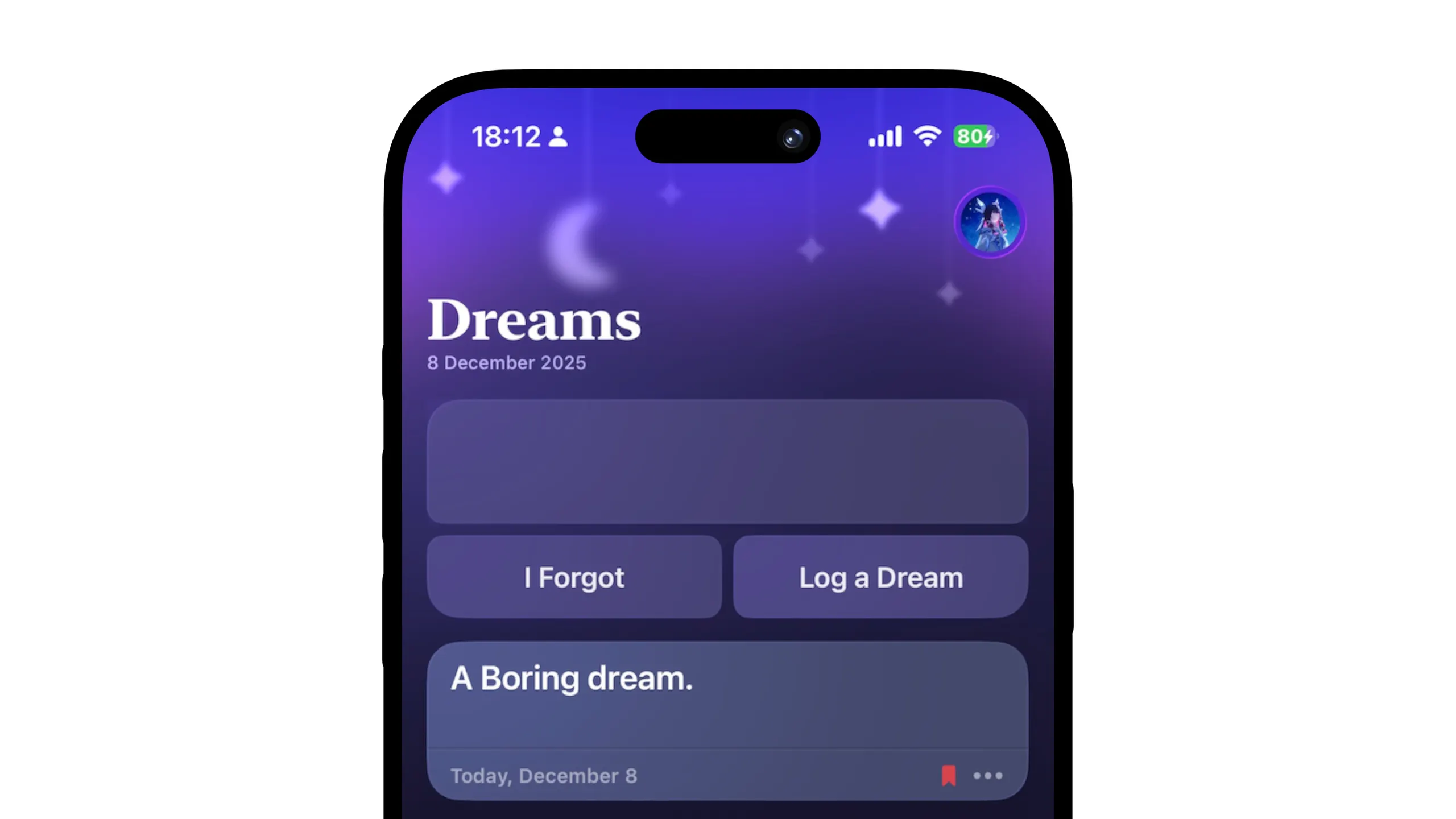
A final thing I wanted to share: the original version of Egretta had a way for you to log "forgotten" dreams. This was a great way to maintain a streak without forcing users to actually remember every time. I tried to add this to this version too.
I first thought to add a glass bar on top of the bottom toolbar, but readability was bad, and I struggled to make it look visible enough yet not bothering.
I then tried to add it on top of the dreams list with the same concentric design as the rest of the app, but I didn't liked it neither, so I ended up removing that whole notion of logging forgotten dreams... It has its downsides (no way to distinguish forgotten dreams and non-logged dreams), but also simplified things so much I deemed it not worth the struggle.
Now that was a lot
While this writeup was already very long for you, I must remind you that this whole process took me weeks of work, spanned across six months! The designs evolved and my taste too, and I'm so proud of the result, both graphically and technically.
I since then successfully led TestFlights that helped me squash the last few bugs, and the release to the store, including Screenshots and Events for the new year.
There are so many details and other anecdotes I haven't shared in here, mainly because this article was already wayyy too long.. but there's so much around every screen of the app as you may guess if you're a fellow designer/developer.
Best thing is, no AI directly edited or wrote code that ended up in the app. Everything was handcrafted, line after line, pixel after pixel, because I believe that's just the attention great apps deserve.
This was for me such a refreshing process to rethink features I'm already familiar with since years, that I came up with in the first place and which really really enjoyed that rework! I'm more proud than ever of this app, and it once again represents the best of my art.
I can never stress enough the importance of starting from scratch sometimes. While there's no need to have such a radical rewrite as Egretta's, you'll never regret going back to the whiteboard and reimagine what makes your app special in the first place.
Thanks a lot if you've read this through, I hope you learned something or at least had fun! I'll try sharing more of my process in both design and development in the future so keep an eye out! And see you for the next Egretta update 👀